
Best Screen Recording Software for Windows in 2026
Full Comparison — Updated June 2026
A screenshot tells half the story. Whether you’re explaining a bug to your dev team, recording a tutorial for YouTube, or giving async feedback on a design — a screen recording captures what words can’t. The problem is Windows has dozens of options, from bloated tools packed with features you’ll never use to stripped-down free apps that slap a watermark over everything. This guide breaks down the best screen recording software for Windows in 2026 — with real free plan limits, AI feature comparisons, resolution specs, and honest verdicts. No vendor bias, no self-promoted tools in the rankings.
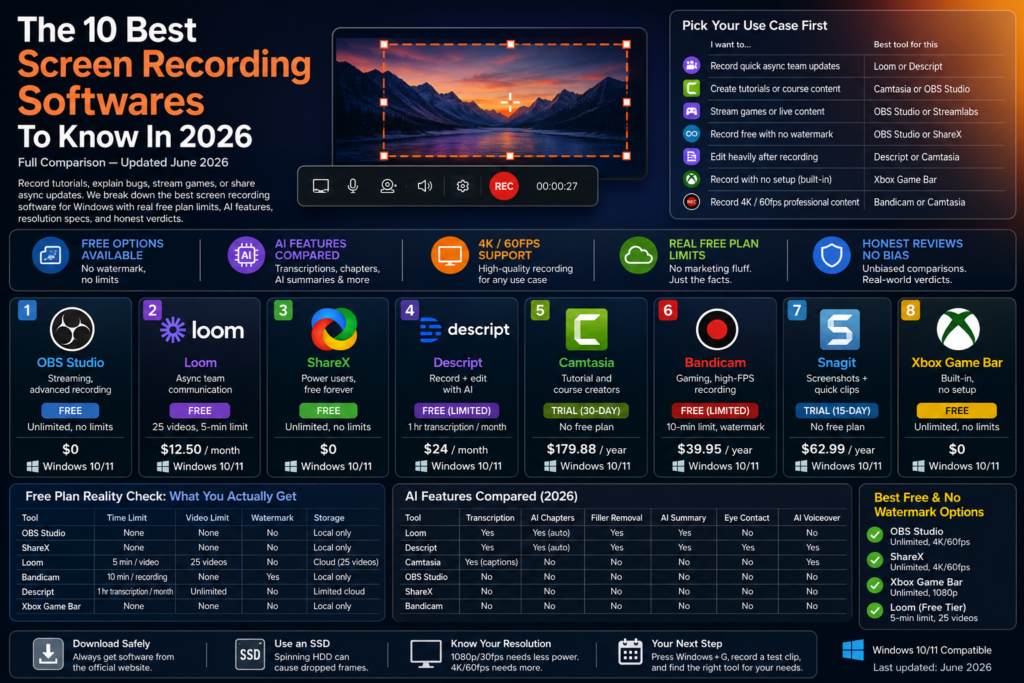
Pick Your Use Case First
Different use cases need completely different tools. Find yours before reading the reviews.
| I want to… | Best tool for this |
| Record quick async team updates | Loom or Descript |
| Create tutorials or course content | Camtasia or OBS Studio |
| Stream games or live content | OBS Studio or Streamlabs |
| Record free with no watermark | OBS Studio or ShareX |
| Edit heavily after recording | Descript or Camtasia |
| Record with no setup (built-in) | Xbox Game Bar |
| Record 4K / 60fps professional content | Bandicam or Camtasia |
Quick Picks: Best Screen Recording Software for Windows
| Tool | Best For | Free Plan | Starting Price | Windows |
| OBS Studio | Streaming, advanced recording | Yes — unlimited, no limits | Free | 10/11 |
| Loom | Async team communication | Yes (25 videos, 5-min limit) | $12.50/month | 10/11 |
| ShareX | Power users, free forever | Yes — full, no watermark | Free | 10/11 |
| Descript | Record + edit with AI | Limited free tier | $24/month | 10/11 |
| Camtasia | Tutorial and course creators | No (30-day trial) | $179.88/year | 10/11 |
| Bandicam | Gaming, high-FPS recording | Yes (10-min, watermark) | $39.95/year | 10/11 |
| Snagit | Screenshots + quick clips | No (15-day trial) | $62.99/year | 10/11 |
Free Plan Reality Check: What You Actually Get
‘Has a free plan’ means nothing without the details. Here’s what each free tier genuinely gives you.
| Tool | Time Limit | Video Limit | Watermark | Storage |
| OBS Studio | None | None | No | Local only |
| ShareX | None | None | No | Local only |
| Loom | 5 min/video | 25 videos | No | Cloud (25 videos) |
| Bandicam | 10 min/recording | None | Yes | Local only |
| Descript | 1 hr transcription/month | Unlimited | No | Limited cloud |
| Xbox Game Bar | None | None | No | Local only |
Free tools with no watermark and no time limit: OBS Studio and ShareX give you completely unlimited recording with zero restrictions. Xbox Game Bar is also watermark-free and already installed.
Best Screen Recording Software for Windows: Full Reviews
1. OBS Studio — Best Free Screen Recording Software for Windows
OS: Windows 10/11, macOS, Linux | Free plan: Yes — unlimited, no watermark
Paid from: Free (no paid version) | Max resolution: 4K / 60fps
AI features: None built-in
OBS Studio is the gold standard for free screen recording on Windows. It records unlimited content to your local drive at up to 4K resolution with no time limits, no watermarks, and no subscription. The interface uses a mixing board metaphor with scenes, sources, and filters — most users are set up and recording within 30 minutes using a beginner preset.
✅ Pro: Unlimited recording at 4K/60fps, completely free. The most powerful free screen recorder on Windows.
⚠️ Con: Steepest learning curve on this list. No built-in editing — you record, then take footage somewhere else to cut it.
🏆 Verdict: Best for streamers, content creators, and power users who want maximum quality for free and don’t mind 30 minutes of setup.
| 💡 Tip Download directly from obsproject.com — no third-party installer needed. The Quick Start Guide walks through your first recording in under 20 minutes. |
2. Loom — Best for Async Team Communication
OS: Windows 10/11, macOS, iOS, Android | Free plan: Yes — 25 videos, 5-minute limit per recording
Paid from: $12.50/month (Business) | Max resolution: 1080p
AI features: Auto-transcription, AI chapters, filler-word removal, AI summaries
Loom is built for one use case: sending video messages to teammates instead of scheduling another meeting. Press record, talk through a screen share or webcam clip, stop, and a shareable link copies to your clipboard automatically. AI-generated chapters, searchable transcripts, and filler-word removal work without any configuration.
✅ Pro: Fastest share-to-link pipeline of any tool here. AI features (chapters, transcripts, summaries) work out of the box.
⚠️ Con: The 5-minute free plan limit is a real wall — many workplace explanations run longer.
🏆 Verdict: Best for remote and hybrid teams replacing ‘quick call?’ with a shareable video clip.
3. ShareX — Best Free HD Screen Recorder for Power Users
OS: Windows 10/11 only | Free plan: Yes — unlimited, no watermark, no time limit
Paid from: Free (open source) | Max resolution: 4K / 60fps
AI features: None built-in
ShareX is completely free, open source, and offers a feature set that rivals paid tools: scrolling capture, OCR on screenshots, built-in annotation tools, an auto-uploader for dozens of cloud services, and workflow automation for post-recording tasks. For someone willing to spend an hour learning it, ShareX does things most $50/year tools can’t.
✅ Pro: Completely free forever, no watermark, no limits. Workflow automation is uniquely powerful.
⚠️ Con: Windows only. Interface is not beginner-friendly — the depth of settings can overwhelm new users.
🏆 Verdict: Best free screen recording application for intermediate Windows users who want maximum flexibility without ever paying.
4. Descript — Best for Recording + Editing in One Place
OS: Windows 10/11, macOS | Free plan: Limited (1 hour transcription/month, unlimited recordings)
Paid from: $24/month (Creator) | Max resolution: Up to 4K
AI features: AI transcription, Underlord AI suite, filler-word removal, eye contact correction, speaker detection
Descript flips how video editing works: instead of a timeline, you edit a transcript. Delete a word from the text and the video cuts that clip. The Underlord AI suite includes eye contact correction, audio enhancement, background removal, and filler-word removal — features that are genuinely unique on this list.
✅ Pro: Editing by transcript is dramatically faster for long-form content. AI eye contact correction is unique among tools here.
⚠️ Con: Descript is primarily a video editor that records — OBS or Loom are better pure recorders. At $24/month, it’s the most expensive subscription here.
🏆 Verdict: Best for content creators who record themselves talking through a screen and want AI-assisted editing without a traditional timeline.
| 💡 Tip Descript’s filler-word removal works on imported audio too — useful if you’re repurposing podcast recordings into video content. |
5. Camtasia — Best for Professional Tutorial and Course Creators
OS: Windows 10/11, macOS | Free plan: No (30-day free trial)
Paid from: $179.88/year | Max resolution: 4K / 60fps
AI features: AI voiceover generation, automatic captions, audio cleanup
Camtasia is the most complete all-in-one screen recorder and video editor for instructional content. Callout annotations, zoom-and-pan effects, interactive quizzes, and cursor highlighting are all baked in. The AI voiceover tool lets you generate narration from text — useful for updating old training videos without re-recording.
✅ Pro: The most complete editing toolkit for tutorial content. Built-in callouts, zoom effects, and quizzes cover the full eLearning production workflow.
⚠️ Con: $179.88/year is the highest subscription cost here. Overkill if you’re making short clips rather than structured courses.
🏆 Verdict: Best for corporate trainers, course creators, and educational content producers who need polished instructional videos regularly.
6. Bandicam — Best HD Screen Recorder for Gaming and High-FPS Content
OS: Windows 10/11 only | Free plan: Yes — 10-minute limit, watermark on free plan
Paid from: $39.95/year | Max resolution: 4K / 480fps (hardware dependent)
AI features: None
Bandicam uses DirectX, OpenGL, and Vulkan capture APIs to record directly from the GPU rather than the software layer, which means it captures accurate frame rates in games without the stuttering that software-based recorders introduce. At up to 480fps capture, it’s the best option for slow-motion content or competitive gaming footage.
✅ Pro: Best frame rate performance under load — captures gaming footage with minimal FPS impact. Supports up to 4K/480fps.
⚠️ Con: Free plan adds a watermark and caps recordings at 10 minutes. Windows only.
🏆 Verdict: Best for Windows gamers and high-FPS content creators who want dedicated GPU-accelerated capture without OBS’s complexity.
7. Snagit — Best for Screenshots Plus Quick Video
OS: Windows 10/11, macOS | Free plan: No (15-day free trial)
Paid from: $62.99/year | Max resolution: Variable (screen dependent)
AI features: None
Snagit occupies a specific niche: if your primary need is annotated screenshots and you want to occasionally record short clips, Snagit handles both better than a pure screenshot tool or a pure screen recorder. Its annotation toolkit — numbered callouts, spotlight effects, step-by-step annotations — is the deepest of any tool here.
✅ Pro: Best screenshot annotation toolkit available. Combines screenshots and short video recording in one subscription.
⚠️ Con: Not a real video production tool — limited editing, no streaming, no long-form workflow.
🏆 Verdict: Best for technical writers, support teams, and QA testers who live in screenshots and occasionally need to record short clips.
8. Xbox Game Bar — Best Built-In Windows Screen Recorder
OS: Windows 10/11 (built in) | Free plan: Yes — unlimited, no watermark
Paid from: Free | Max resolution: 1080p / 60fps
AI features: None
Press Windows + G to open the Game Bar overlay, then hit record. It saves to your Videos > Captures folder automatically. The Game Bar was designed for gaming clips but works for any application window — though it can’t capture the full desktop, only open app windows.
✅ Pro: Already installed on every Windows 10/11 machine. Zero setup, zero cost, zero learning curve.
⚠️ Con: Can’t record the full desktop — only individual app windows. No editing, no sharing, no cloud upload.
🏆 Verdict: Best when you need to record something in the next 30 seconds and don’t have another tool installed.
| 💡 Tip |
AI Screen Recording Features Compared (2026)
This is the section no competitor covers systematically. Here’s what each tool actually does with AI:
| Tool | Transcription | AI Chapters | Filler Removal | AI Summary | Eye Contact | AI Voiceover |
| Loom | Yes | Yes (auto) | Yes | Yes | No | No |
| Descript | Yes | Yes (auto) | Yes | Yes | Yes | Yes |
| Camtasia | Yes (captions) | No | No | No | No | Yes |
| OBS Studio | No | No | No | No | No | No |
| ShareX | No | No | No | No | No | No |
| Bandicam | No | No | No | No | No | No |
Full Comparison Table
| Tool | Free Plan | Max Resolution | AI Features | Price | Best For |
| OBS Studio | Yes (unlimited) | 4K / 60fps | No | Free | Streaming, free recording |
| Loom | Yes (limited) | 1080p | Yes (strong) | $12.50/mo | Async comms |
| ShareX | Yes (unlimited) | 4K / 60fps | No | Free | Free power users |
| Descript | Yes (limited) | 4K | Yes (strongest) | $24/mo | AI-edit workflows |
| Camtasia | No (trial) | 4K / 60fps | Yes (captions) | $179.88/yr | Tutorial creation |
| Bandicam | Yes (10-min, wm) | 4K / 480fps | No | $39.95/yr | Gaming, high-FPS |
| Snagit | No (trial) | Screen-dep. | No | $62.99/yr | Screenshots + clips |
| Xbox Game Bar | Yes (unlimited) | 1080p / 60fps | No | Free | Quick no-install |
Free Screen Recording Software for Windows: No Watermark Options
- OBS Studio — unlimited, 4K/60fps, no watermark, fully free forever
- ShareX — unlimited, 4K/60fps, no watermark, open source
- Xbox Game Bar — unlimited, 1080p, no watermark, built into Windows
- Loom (free tier) — no watermark, but capped at 5 minutes and 25 videos
For complete freedom with zero restrictions, OBS Studio and ShareX impose no limits on the free plan.
System Requirements: What Your PC Actually Needs
Screen recording is more resource-intensive than most expect — especially at 4K or 60fps.
Minimum specs for 1080p / 30fps recording
- CPU: Intel Core i5 (8th gen+) or AMD Ryzen 5 (2000 series+)
- RAM: 8GB
- Storage: SSD recommended — spinning HDD causes dropped frames during capture
- GPU: Any dedicated GPU from the last 5 years
For 4K / 60fps recording
- CPU: Intel Core i7/i9 (10th gen+) or AMD Ryzen 7/9
- RAM: 16GB minimum
- Storage: NVMe SSD — 4K/60fps requires sustained 400+ MB/s write speed
- GPU: NVIDIA GTX 1060 / AMD RX 580 or newer (for GPU-accelerated encoding)
Storage space estimates: 1080p/30fps ~2.5 GB/hour · 1080p/60fps ~5 GB/hour · 4K/60fps ~20–30 GB/hour
Choosing Based on Your Budget
- Free forever: OBS Studio, ShareX, Xbox Game Bar — unlimited, no watermark, no subscription
- Under $50/year: Bandicam ($39.95/year) — best-value paid option for Windows gaming
- $50–$100/year: Snagit ($62.99/year) — best for screenshot-first users who occasionally need video
- $100+/year: Camtasia ($179.88/year) for professional course production; Descript ($24/month) for AI-heavy editing
How to Use the Built-In Windows Screen Recorder
You may not need third-party software at all.
Xbox Game Bar (Windows + G)
- Press Windows + G to open the overlay
- Click Record or press Windows + Alt + R
- Press the same shortcut to stop — recording saves to Videos > Captures
Snipping Tool (Windows 11 only)
- Open Start menu, search ‘Snipping Tool’
- Select the camera icon to switch to video mode
- Draw around the area you want to record, click Record, then Stop
FAQ: Screen Recording Software for Windows
What is the best free screen recording software for Windows with no watermark?
OBS Studio and ShareX are both completely free, have no watermark, and impose no time or video limits. Xbox Game Bar is also watermark-free and already installed on every Windows 10/11 machine.
Can Windows record your screen without downloading software?
Yes. Press Windows + G to open Xbox Game Bar, then click Record or press Windows + Alt + R. On Windows 11, the Snipping Tool also supports screen recording. Both save MP4 files locally with no time limit and no watermark.
Is OBS Studio good for beginners?
OBS has a learning curve — the scene-and-source model isn’t immediately obvious. Most beginners are productive within 30 minutes using the built-in Quick Start wizard. If you want zero setup, Loom’s free tier or Xbox Game Bar are better starting points.
What is the best HD screen recorder for Windows?
OBS Studio, ShareX, Camtasia, and Bandicam all support up to 4K / 60fps. Bandicam supports up to 480fps for slow-motion gaming content. Loom caps at 1080p on all plans.
OBS vs Loom — which should I choose?
Choose OBS if you need maximum recording quality, plan to stream, or want long recordings without limits. Choose Loom if your main use case is sending short video updates to teammates — its share-via-link workflow is unmatched for that specific scenario. They solve different problems.
Final Thoughts
The best screen recording software for Windows in 2026 isn’t a single answer — it’s the tool that matches what you’re actually trying to do. For free unlimited recording, OBS Studio and ShareX have no serious competition. For async team communication, Loom’s AI features and instant link-sharing make it the default. For tutorial creation, Camtasia remains the professional standard. For gaming footage, Bandicam handles high-FPS capture better than any free alternative.
The worst outcome is paying for a feature-heavy tool when Xbox Game Bar was already installed on your machine. Start free, understand your real workflow, and upgrade only when a specific limitation is actually costing you time.