
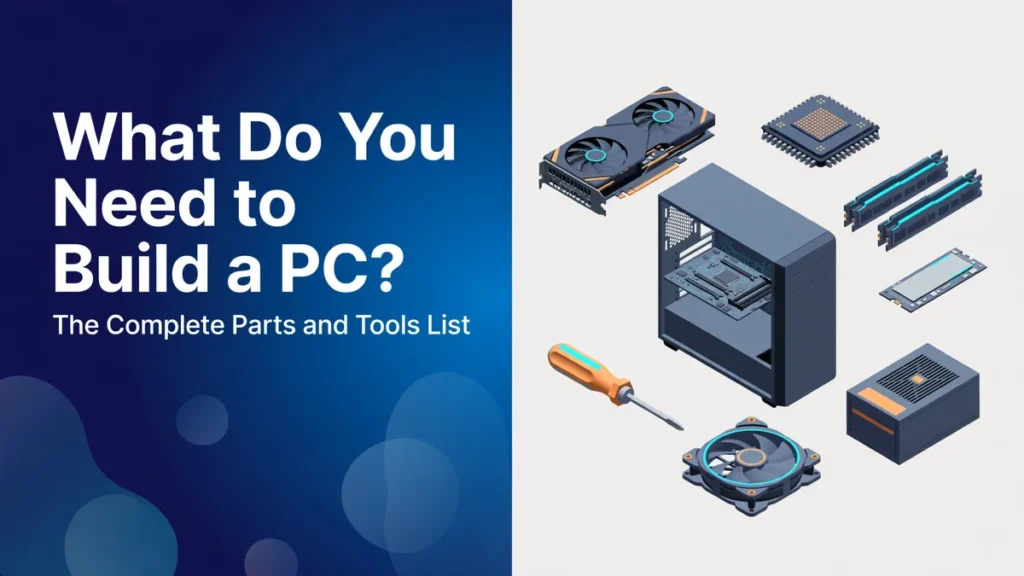
What do you need to build a PC? Eight core parts: a processor, a motherboard, memory, storage, a graphics card, a power supply, a case and a CPU cooler. On top of that you need an operating system, a way to install it, a monitor with a keyboard and mouse, and a few basic tools.
This guide explains what each part does, how to check that your choices fit together, and where the money should go. The goal is a shopping list you can trust before you spend anything. Prices and models change quickly, so the examples teach the method, not specific products.
Table of Contents
What Parts Do You Need to Build a PC?
This is the essential hardware for a custom computer, with the one thing to check before you buy each part.
| Part | What it does | Check before buying |
| Processor (CPU) | Runs programs and instructions | Its socket must match the motherboard |
| Motherboard | Connects every other part | Socket, RAM type, size and number of drive slots |
| Memory (RAM) | Short term workspace for running programs | DDR generation must match the motherboard |
| Storage (SSD) | Holds Windows, programs and files | The slot type your board supports |
| Graphics card (GPU) | Draws images and video, essential for gaming | Length, power needs and your monitor |
| Power supply (PSU) | Feeds power to every part | Total wattage and the right cables |
| Case | Houses and cools the parts | Supports your motherboard size and GPU length |
| CPU cooler | Keeps the processor from overheating | Supports your socket and fits inside the case |
| Operating system | The software that runs the PC | Meets the system requirements |
The Core Parts Explained
CPU vs GPU: What Each One Does
The central processing unit (CPU) handles general tasks: running Windows, browsers, office programs and the logic of a game. The graphics processing unit (GPU) is built for drawing images, and it does the heavy work in games, video editing and 3D software.
For gaming, the GPU usually matters more to frame rates, though a very weak CPU can hold a strong GPU back. Some processors include basic integrated graphics. That is enough for office work, web browsing and video, but not for demanding games, so a gaming build normally needs a separate graphics card.
Motherboard
Every other part plugs into the motherboard, so it sets what you can use. The socket decides which CPUs fit. The chipset decides features such as the number of drive slots and USB ports. The size, called the form factor, decides which cases it fits, and the most common sizes are ATX, microATX and Mini ITX.
Check whether the board has built in Wi-Fi if you cannot use a cable. A newer processor may also need a BIOS update to work on an older board, so read the manufacturer’s CPU support list before you buy.
Memory
RAM is the fast workspace the computer uses while programs run. DDR4 and DDR5 are different types and do not fit in the same slots, so the board decides which one you buy. Buy a matched kit of two sticks rather than mixing old and new modules.
Many builds for gaming and everyday use start at 16 GB, and people who edit video or run many programs at once often choose 32 GB. Some memory runs below its advertised speed until you switch on a profile in the BIOS, usually named XMP or EXPO.
Storage
A solid state drive (SSD) is the standard choice for the drive that holds Windows and your programs. NVMe SSDs plug into M.2 slots on the board and are faster than older SATA SSDs. Hard disk drives are slower but cheaper per terabyte, so they only make sense for bulk files such as video archives.
Power Supply
The power supply unit (PSU) is the part where saving money costs the most when it goes wrong. A weak or poor quality unit can cause crashes or damage other parts.
Add up what your parts draw, then leave room to spare. Here is an illustrative example, not a measured result. A processor at 125 W, a graphics card at 250 W and 75 W for everything else gives 450 W. Adding about 30 percent headroom gives 585 W, so a 650 W unit would be a sensible choice. For a real build, use the power figure that your graphics card maker recommends, and check that the PSU has the connectors your card needs.
Case and Cooler
A case must hold your motherboard size and leave enough room for the GPU length and the cooler height. Airflow matters as much as looks, because a PC that runs hot slows itself down. Some processors come with a cooler in the box and some do not, so check the product page before you add one.
What Beginners Forget to Buy
The parts above make a computer, but not a finished one. These are the items people most often discover too late.
- An operating system. Windows is not free to install on a new build. Microsoft lists the Windows 11 minimum as a 64 bit processor with two or more cores, 4 GB of RAM, 64 GB of storage, UEFI firmware with Secure Boot and TPM 2.0. Most modern boards meet this, but confirm it. Linux is a free alternative if you prefer it.
- A way to install it. You need a USB drive of at least 8 GB and a second computer to create the installer.
- A monitor, a keyboard, a mouse, and the correct display cable. Connect the monitor to the graphics card, not the motherboard, when you have one.
- A Phillips screwdriver is the main one. Add cable ties and a small flashlight. Thermal paste is often already on the cooler, so check before buying a tube.
- Small extras. Wi-Fi if your board lacks it, and extra case fans if the case has few.
Choose Parts by How You Will Use the PC
The same parts list does not suit every person. Decide the main job first, then give the extra budget to the part that does that job.
| Main use | Put more money into | Can stay modest |
| Gaming | Graphics card, then processor | Case, storage size |
| Office, study and browsing | Storage speed, memory, a reliable PSU | Graphics card, often unnecessary |
| Video editing and design | Processor, memory, fast storage, graphics card | Case lighting and extras |
| Streaming and gaming together | Processor, memory, graphics card | Case |
This is general guidance based on how each part is used, not benchmark data. If you are unsure, check the software you plan to run, because many programs publish recommended specifications.
How to Check That Your Parts Fit Together
Compatibility problems are the most common reason a first build goes wrong. Run these checks on your list before you pay:
- The CPU socket matches the motherboard, and the board supports that exact processor with its current BIOS.
- Memory type. The RAM type, DDR4 or DDR5, matches the board.
- The motherboard size fits the case.
- The GPU length and the cooler height are within the case limits listed by the case maker.
- The PSU provides the right power and the right connectors for the CPU and GPU.
- Drive slots. The board has enough M.2 or SATA ports for your drives.
A parts list website can catch many of these problems for you. One example is PCPartPicker, which lets you create and share parts lists. Always confirm the final list against the manufacturer’s product pages, because no tool is perfect.
How to Split Your Budget
A common approach for a gaming PC is to spend the largest share on the graphics card. The table below is an illustrative split of a $1,000 parts budget. It is a planning rule of thumb, not market data, and real prices vary by country and time.
| Part | Share of budget | Amount |
| Graphics card | 40% | $400 |
| Processor | 18% | $180 |
| Motherboard | 10% | $100 |
| Memory | 8% | $80 |
| Storage | 8% | $80 |
| Power supply | 7% | $70 |
| Case | 5% | $50 |
| CPU cooler | 4% | $40 |
| Total | 100% | $1,000 |
This split leaves out Windows, the monitor and peripherals, so add those on top. For an office or study PC, you can shrink the graphics share and put the money into the processor, memory and storage.
Where to spend and where to save is a matter of judgment, so treat this as my recommendation. Spend on the graphics card for gaming, and do not cheap out on the power supply. Save on case lighting, extra fans and fancy memory heat spreaders.
Build It or Buy a Prebuilt PC?
Building gives you control over every part and makes upgrades easier later. A prebuilt PC saves time, comes with a warranty for the whole system and may be better value when parts are expensive. If you want the shortest path to a working machine, a prebuilt may suit you better. If you like to learn, building is a reasonable project for a beginner who is careful.
Mistakes to Avoid When Choosing Parts
- Buying in the wrong order. Choosing a graphics card first and finding the case or power supply cannot handle it.
- Ignoring BIOS support. A new processor on an older board may not start until the BIOS is updated.
- Unbalanced builds. A powerful processor wastes money if the graphics card or monitor is far weaker.
- Cheap power supplies. It can make the whole system unreliable.
- Forgetting the operating system. This leaves you with a computer that cannot run anything.
- Reusing old parts without checking. Memory and storage standards change, so check each page.
Quick Answers
Do I need a separate graphics card?
Only for gaming and graphics heavy work. For office tasks and video, a processor with integrated graphics can be enough.
Can I reuse parts from an old computer?
Sometimes. Drives, cases and power supplies are the usual candidates, but check sizes, connectors and age. Older memory and processors rarely match a new motherboard.
How do I know the list will work before I buy?
Use the compatibility checks above and compare your list with each manufacturer’s specifications. When two parts are listed as compatible by both makers, you can buy with more confidence.
Conclusion
That covers what you need to build a PC: the eight core parts, the operating system and the small extras that are easy to miss. Write your list, run the six compatibility checks, and set a budget before you buy anything. When the parts arrive, follow a beginner assembly guide for the build itself. Prices and standards change, so verify each part on its own product page.