
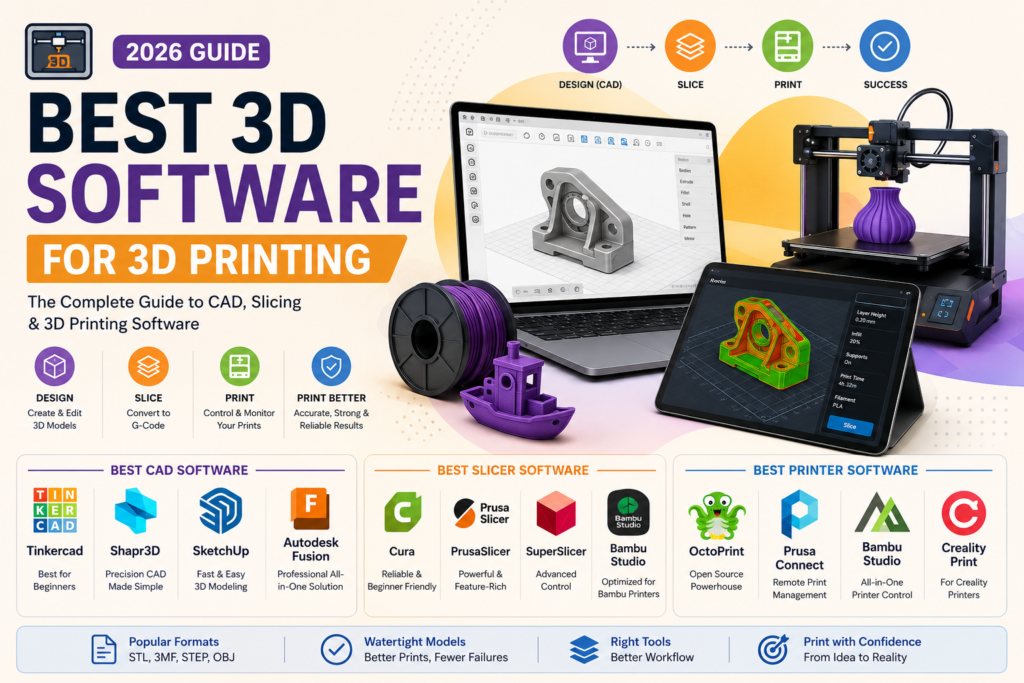
Searching for the best 3D software for 3D printing usually turns up guides that only cover one piece of the puzzle: a CAD roundup that never mentions slicing, or a slicer list that assumes you already have a finished model. That’s a problem, because 3D printing actually needs software from three different stages working together, and picking the wrong one at any stage can turn a good design into a failed print. This guide covers all three stages honestly, explains the file formats and concepts that actually determine whether your print succeeds, and gives you real, current pricing instead of vague “contact us” links. You’ll also get a clear starting point if you’re completely new to CAD. By the end, you’ll know exactly which tools to pair together for your specific workflow.
Table of Contents
The Three Stages of 3D Printing Software
Most comparison guides blur these together, which causes real confusion. There are three distinct types of software involved in getting from an idea to a finished print.
- Design (CAD) software is where you create or edit the 3D model itself, whether from scratch or by modifying an existing file.
- Slicer software converts your finished model into G-code, the layer-by-layer instructions your printer actually follows.
- Printer host and management software controls and monitors the printer during the actual print job, often remotely.
You typically need at least one tool from each category, though some programs (like SelfCAD or Autodesk Fusion) blend design and slicing into one workflow. Knowing which stage a piece of software actually belongs to will save you from comparing tools that aren’t solving the same problem.
Key Concepts Before You Choose
A few concepts show up across every stage and are worth understanding upfront, since they directly affect whether your print succeeds.
Manifold (watertight) geometry means your model is a fully closed solid with no gaps or holes in its surface. Non-manifold models are one of the most common causes of failed prints, and some CAD tools are much better than others at preventing this automatically.
Parametric vs. direct vs. mesh modeling describes how a program lets you build and edit shapes. Parametric modeling (SOLIDWORKS, Fusion 360) records every step in a history tree, so you can go back and change a measurement without rebuilding the model. Direct modeling lets you grab and reshape geometry freely, without that history. Mesh modeling (Blender, Tinkercad) builds surfaces from triangles, which is great for organic shapes but less precise for parts that need to fit together exactly.
File formats matter more than most guides admit. STL is the most universally supported format but only describes surface geometry as a mesh, fine for simple, single-color prints. 3MF stores mesh data plus metadata like color and material, and produces smaller files than STL. STEP uses precise curve data (NURBS) instead of mesh, making it the best choice for mechanical parts that need to fit together exactly. OBJ can carry color and texture data, useful for artistic prints, but isn’t supported by every slicer. Confirm your CAD software can export the format your slicer actually needs before you start designing.
Best CAD Software for 3D Printing
1. Tinkercad
Tinkercad is a free, browser-based tool built around dragging and combining pre-made shapes, with no installation and no account complexity. It’s genuinely the easiest entry point into 3D printing for absolute beginners, and it exports directly to STL for slicing.
Its mesh-based approach struggles with precise curves and complex assemblies, so most users eventually outgrow it once they need tighter tolerances or mechanical fits.
Best for: First-time users, students, and simple prints like keychains or enclosures.
2. Shapr3D
Shapr3D combines an intuitive, touch-first interface (especially strong on iPad with Apple Pencil) with genuine precision, powered by the Siemens Parasolid kernel, the same geometry engine used in professional CAD systems. It supports both history-based parametric editing and direct modeling in the same file, and syncs across iPad, Mac, and Windows.
The free plan limits export options, so exporting print-ready files typically requires the paid tier, which starts around $299 per year.
Best for: Users who want professional-grade precision without a steep learning curve, especially on iPad.
3. SketchUp Free
SketchUp is well known for fast, intuitive push-pull modeling, and its free, browser-based version is genuinely usable for simple 3D printing projects. It shines for quick concepts and architectural-style shapes.
As a surface modeler rather than a true solid modeler, SketchUp models often aren’t watertight by default, which means extra troubleshooting before a model is actually print-ready. Paid plans start around $129 per year.
Best for: Users prioritizing speed and simplicity over precision, especially for non-mechanical shapes.
4. Autodesk Fusion
Fusion combines parametric, direct, and mesh modeling in one environment, along with simulation tools and even a built-in slicer for basic print preparation. The personal use plan is free with some export limitations; paid plans for professional use start around $680 per year.
The built-in slicer is convenient but lacks the fine control of a dedicated slicer, and the interface can feel dense if you only need to prepare a simple model for printing.
Best for: Intermediate users and engineers who want parametric precision plus optional built-in slicing.
5. FreeCAD
FreeCAD is a genuinely free, open-source parametric CAD tool built on the Open CASCADE geometry kernel, with a large, active community and Python scripting support for custom workflows.
The interface and workbench system feel more technical than consumer-focused competitors like Shapr3D or SketchUp, so expect a real learning curve, especially early on.
Best for: Technically comfortable users who want full parametric control without any licensing cost.
Best Slicer Software for 3D Printing
Slicers are where your finished model actually becomes printable instructions, and this stage gets far less attention than CAD in most comparison guides, despite being just as important to print success.
1. Ultimaker Cura
Cura is free, open-source, and arguably the most widely used slicer available, with over 400 adjustable print settings and broad compatibility across printer brands. Its tree supports, organic structures that use less filament and remove more cleanly than standard supports, are a genuinely useful standout feature.
Print time estimates are commonly reported as running longer than the actual print, so treat Cura’s time predictions as a rough guide rather than an exact figure.
Best for: Most users, regardless of printer brand, who want a free slicer with deep customization available.
2. PrusaSlicer
Developed by Prusa Research and built on the open-source Slic3r engine, PrusaSlicer supports both FDM and resin printing, with customizable support structures and variable layer height. It’s free and works across Windows, macOS, and Linux.
Best for: Prusa printer owners specifically, though it works well with other FDM printers too.
3. Bambu Studio
Bambu Studio is built for Bambu Lab printers and is known for exceptionally fast, well-optimized default profiles that tend to produce reliable prints with minimal manual tuning. It’s free and includes strong multi-material support for printers with an AMS unit.
Best for: Bambu Lab printer owners who want strong results out of the box with less manual fine-tuning.
Best Printer Host and Management Software
This is the stage almost every comparison guide skips entirely, despite it being one of the three core categories of 3D printing software.
1. OctoPrint
OctoPrint is free, open-source, browser-based software that lets you monitor and control your printer remotely, including starting, pausing, and stopping print jobs, along with webcam monitoring if you’ve added a camera. It runs on a Raspberry Pi or similar low-cost hardware connected to your printer.
Best for: Anyone who wants free, flexible remote monitoring and control, especially for printers that don’t include this natively.
2. Klipper (with Mainsail or Fluidd)
Klipper is free, open-source firmware that offloads complex calculations to a connected computer rather than the printer’s own limited hardware, often resulting in noticeably faster print speeds and smoother motion. It pairs with a web interface like Mainsail or Fluidd for control and monitoring.
Setup is more involved than OctoPrint, and it requires flashing new firmware to your printer’s control board, which isn’t something every beginner will want to attempt.
Best for: Users chasing faster print speeds who are comfortable with a more technical setup process.
Best 3D Software for 3D Printing: Quick Comparison
| Software | Category | Best For | Pricing |
| Tinkercad | CAD | Absolute beginners | Free |
| Shapr3D | CAD | Precision without complexity | Free plan, paid from $299/year |
| SketchUp Free | CAD | Fast, simple concepts | Free plan, paid from $129/year |
| Autodesk Fusion | CAD | Parametric modeling, engineers | Free (personal), paid from $680/year |
| FreeCAD | CAD | Open-source parametric control | Free |
| Ultimaker Cura | Slicer | Most users, broad compatibility | Free |
| PrusaSlicer | Slicer | Prusa printer owners | Free |
| Bambu Studio | Slicer | Bambu Lab printer owners | Free |
| OctoPrint | Printer host | Remote monitoring and control | Free |
| Klipper + Mainsail | Printer host | Faster print speeds | Free |
Best CAD Software for Beginners: A Direct Comparison
If you’re brand new to CAD specifically, three tools stand out for genuinely gentle learning curves: Tinkercad for the absolute simplest starting point, SketchUp Free for fast, visual push-pull modeling, and Shapr3D if you want real precision without needing to learn parametric modeling concepts right away. Avoid starting with SOLIDWORKS, Siemens NX, or CATIA unless you’re specifically learning for engineering purposes, since their learning curves are steep by design and built for professional workflows rather than casual printing projects.
How to Choose the Right Software for Your Workflow
- Complete beginner making simple objects: Tinkercad plus Cura
- Want precision without a steep learning curve: Shapr3D plus your printer manufacturer’s slicer
- Engineering or mechanical parts: Fusion 360 or FreeCAD plus PrusaSlicer
- Own a Bambu Lab printer: Any CAD tool above plus Bambu Studio
- Want remote monitoring and control: Add OctoPrint or Klipper regardless of which CAD and slicer you choose
Most successful 3D printing workflows pair one tool from each category rather than relying on a single all-in-one solution, so don’t feel pressured to find one program that does everything well.
Frequently Asked Questions
What is the best 3D software for 3D printing overall?
There’s no single best option because 3D printing requires software from three different stages. Tinkercad and Shapr3D lead for beginner-friendly design, Ultimaker Cura is the most versatile free slicer, and OctoPrint is the standout choice for remote printer control.
What is the best CAD software for beginners specifically?
Tinkercad is the gentlest starting point with zero learning curve, while Shapr3D offers real precision for beginners who want to grow into more advanced modeling without switching tools later.
Do I need separate CAD and slicer software?
In most cases, yes. CAD software designs the model; slicer software converts it into instructions your printer understands. Some tools like Autodesk Fusion include basic slicing, but a dedicated slicer generally offers more control.
What file format should I use for 3D printing?
STL is the most universally supported format for simple prints. Use 3MF if your project involves multiple colors or materials, and STEP if you need precise, mechanically accurate curves for parts that must fit together exactly.
Is free 3D printing software good enough for serious projects?
Yes, in many cases. FreeCAD, Ultimaker Cura, PrusaSlicer, and OctoPrint are all genuinely capable, widely used tools with no cost involved. Paid software tends to add convenience, advanced simulation, or enterprise features rather than being strictly necessary for successful prints.
Conclusion
The best 3D software for 3D printing isn’t one single program, it’s the right combination across three stages: design, slicing, and printer control. Tinkercad and Shapr3D offer the most accessible starting points for CAD, Ultimaker Cura remains the most versatile free slicer regardless of your printer brand, and OctoPrint fills the printer-host gap that most comparison guides skip entirely. Whatever combination you choose, confirm your CAD software exports the file format your slicer actually needs, watch for non-manifold geometry before you print, and don’t feel obligated to find one all-in-one tool when pairing specialists from each category usually gives you better results.