
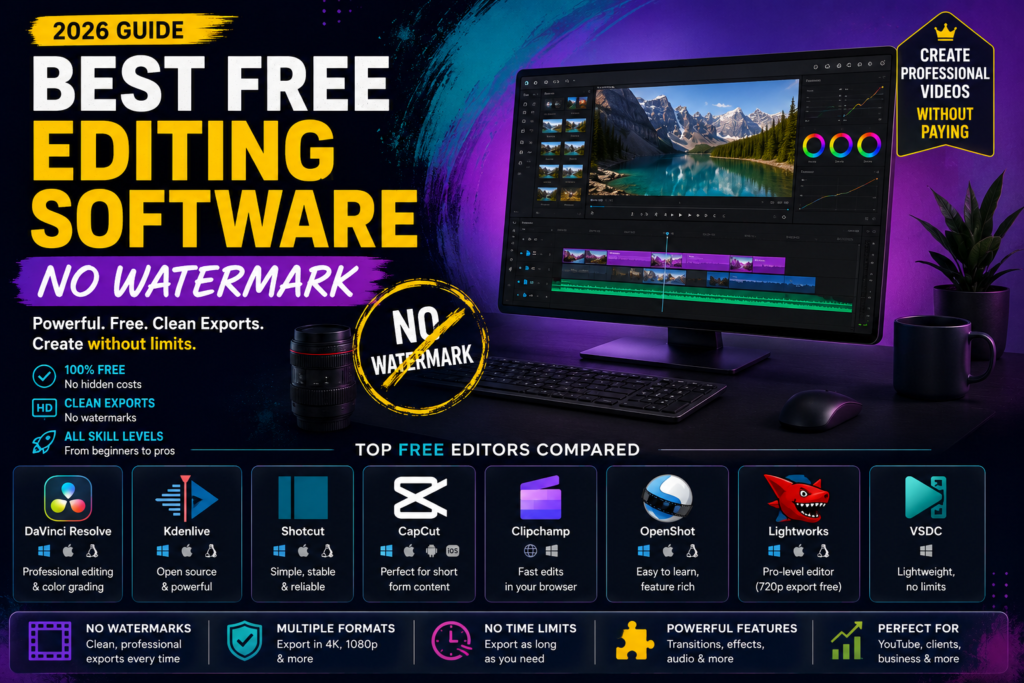
A watermark can ruin an otherwise great edit in one second flat, especially when the video is going straight to a client or to YouTube. The good news is that some of the best free editing software no watermark options are just as capable as programs you would normally pay for. This guide skips the generic listicle approach and tells you exactly which free tools export clean, which ones quietly limit resolution or add an intro screen instead of a logo, and which one actually fits how you work. You will also get a comparison table, a pick by use case, and answers to the questions people usually search for right after the main one. Let us get into what actually matters before you download anything.
Table of Contents
Why Watermark Free Does Not Always Mean Fully Free
A lot of software claims to be free with no watermark, and technically that is true, yet the fine print still matters. Some programs cap your export at 720p on the free tier. Others add a short intro clip instead of a logo, which is still a form of branding you did not choose. A few limit certain effects, audio tools, or track counts until you upgrade.
None of that means the software is bad. It just means the phrase free editing software without watermark can hide different tradeoffs depending on the tool, so it is worth knowing the actual limits before you build a whole project around one app.
Quick Answer, Best Picks At A Glance
If you only have a minute, here is the short version before the full breakdown below.
| Tool | Best For | Platform | Truly Watermark Free |
| DaVinci Resolve | Serious editing and color work | Windows, Mac, Linux | Yes |
| Kdenlive | Open source fans and Linux users | Windows, Mac, Linux | Yes |
| Shotcut | Simple, stable everyday editing | Windows, Mac, Linux | Yes |
| CapCut | Social media and short clips | Windows, Mac, iOS, Android | Yes, desktop and mobile |
| Clipchamp | Quick browser based edits | Web, Windows | Yes |
| OpenShot | Beginners who want a simple layout | Windows, Mac, Linux | Yes |
| Filmora | Fast edits with templates | Windows, Mac | No, watermark unless upgraded |
The Editors Worth Your Time
DaVinci Resolve
DaVinci Resolve is the closest thing to professional software you will find for free, and its export has never carried a watermark or a time cap. It handles color grading, audio mixing, and visual effects inside one program, which is why film editors and colorists use it alongside paid tools.
- Strong for color work, multi camera editing, and audio cleanup
- Runs best with a dedicated graphics card, so older laptops may struggle
Kdenlive
Kdenlive is fully open source, meaning there is no paid tier hiding better features behind it. It supports unlimited tracks, keyframe animation, and strong format compatibility through FFmpeg.
- No watermark, no restricted version, ever
- Interface feels less polished than commercial software, though function is solid
Shotcut
Shotcut has been around long enough to be genuinely stable, and it opens almost any video format without needing extra codecs installed. It is a fair middle ground between something too simple and something overwhelming.
- Portable version available, so it can run from a USB stick
- Interface looks a bit dated next to newer apps, but everything works
CapCut
CapCut exports without a watermark on both desktop and mobile, and its automatic captions and background removal make it fast for short form content. If your videos are headed to TikTok, Reels, or Shorts, this is usually the quickest route from raw footage to a finished clip.
- Best free video editing software pick for social content specifically
- Some AI features process in the cloud, so consider that if privacy matters to your footage
Clipchamp
Clipchamp runs in your browser, so there is nothing to install, and the free plan exports without a watermark. The tradeoff is a 1080p cap on the free tier and a simpler toolset overall.
- Great for quick social clips and short business videos
- Not built for long form or highly detailed color work
OpenShot
OpenShot keeps things approachable with unlimited tracks and a straightforward drag and drop layout, while still offering keyframes, compositing, and basic 3D titles for anyone ready to explore further.
- Good first real editor for someone moving on from a phone app
- Transitions and rendering can be a little slower than newer alternatives
Lightworks
Lightworks has cut real feature films, and its free version keeps the same editing engine, just capped at 720p exports. If you plan to upgrade eventually, it is a legitimate way to learn on professional grade tools from day one.
- Efficient cutting workflow once you learn the shortcuts
- Only exports in 720p unless you subscribe
VSDC
VSDC runs light on system resources, which makes it a solid option for older Windows machines. It supports 4K and higher resolutions with no watermark and no file size limits on the free version.
- Handles chroma key, masking, and audio filters without paying
- Windows only, and the workflow feels a bit different from typical timeline editors
Which Free Editor Actually Fits You
- New to editing entirely: start with CapCut or Clipchamp for the gentlest learning curve
- Editing for YouTube long form content: Shotcut or OpenShot cover most everyday needs
- Serious about color grading or filmmaking: DaVinci Resolve is worth the steeper learning curve
- Running Linux or prefer open source software only: Kdenlive is the most complete option
- Working on an older or low spec PC: VSDC or Shotcut will run more comfortably
- Making content for TikTok or Reels specifically: CapCut remains the fastest workflow
Checking each tool’s official download page before committing is a smart last step, since free tiers occasionally change what they include.
A Few Things Worth Double Checking Before You Commit
Export resolution limits catch people off guard more than watermarks do at this point. Confirm whether the free plan supports at least 1080p if that matters for your platform.
If your footage involves other people, sensitive audio, or unreleased material, be mindful of any tool that processes video through the cloud rather than locally on your machine, since CapCut and a few browser based editors work this way.
Reading a program’s own changelog or update notes is worth doing once you have narrowed things down, since free tier limits do shift over time as companies update their pricing.
Frequently Asked Questions
Is there truly free video editing software with absolutely no watermark? Yes. DaVinci Resolve, Kdenlive, Shotcut, CapCut, Clipchamp, OpenShot, and VSDC all export without any watermark on their free versions, though a few cap resolution instead.
Why do some free editors still feel limited if there is no watermark? Companies usually hold back something else instead, such as export resolution, advanced effects, or cloud storage, to encourage an eventual upgrade.
What is the best free video editing software for total beginners? CapCut and Clipchamp are the easiest starting points because of their simple drag and drop layouts and quick learning curve.
Can I use free editing software for commercial or client work? Most of the tools mentioned here allow commercial use on their free tier, but always check the specific license terms of the program before delivering paid client work.
Does open source video editing software get updated regularly? Kdenlive and Shotcut both receive frequent updates from active communities, and neither requires payment for continued access to new features.
Conclusion
The best free editing software no watermark for you depends less on any single feature list and more on what you are actually making. A short social clip does not need the same tool as a color graded short film, and matching the software to the job will save you far more time than chasing whichever app has the longest feature list. Start with the pick that matches your use case above, test an export early, and you will know within one project whether it is the right long term fit.