
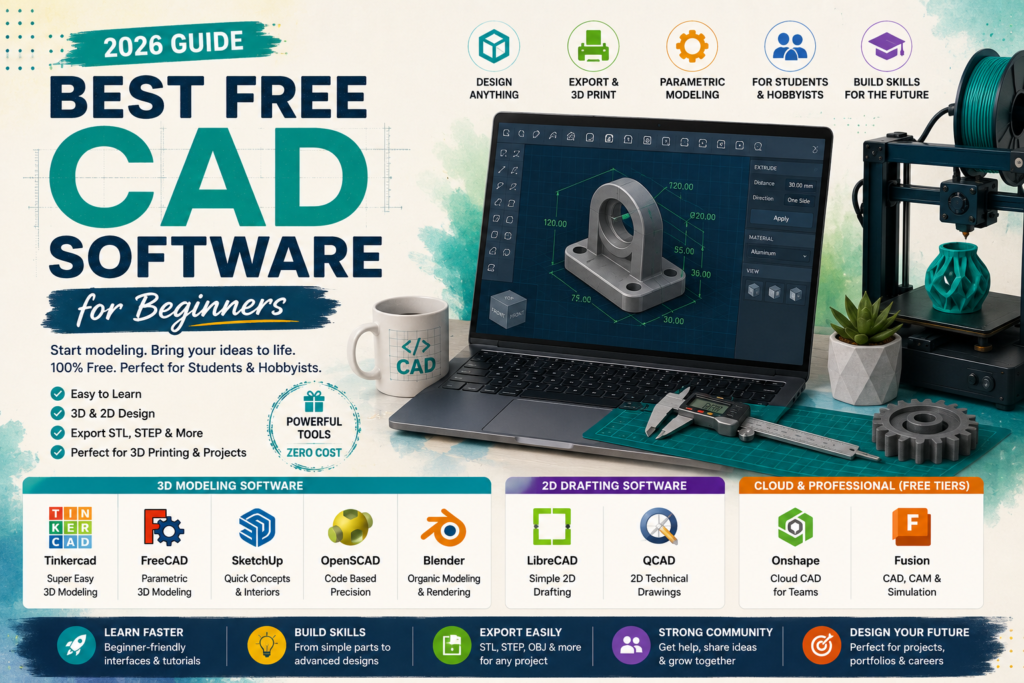
Learning Computer Aided Design, better known as CAD, does not have to cost anything. Whether you are a student working on a class project or a hobbyist experimenting with 3D printing, there are several genuinely capable free CAD software for beginners options available right now. This guide walks through the best free CAD software for beginners in 2026, compares them side by side, and helps you match a tool to your actual goal instead of guessing. You will also find a short section for students who need software that pairs well with coursework and portfolio building. By the end, you will know exactly which program to open first.
Table of Contents
What to Look for in Free CAD Software
Not every free tool is worth your time, so it helps to know what separates a good beginner option from one that will slow you down.
- Ease of use, meaning a clean interface that does not require memorizing dozens of commands before you can build anything
- Real 3D modeling capability, not just a viewer or a very basic shape editor
- Export formats like STL and STEP, which matter if you plan to 3D print or share files with other software
- Active community support, since a large user base means faster answers when you get stuck
- Room to grow into parametric modeling, which lets you edit a design by adjusting its measurements instead of rebuilding it from scratch
Best Free CAD Software for Beginners, Compared
Here is a side by side look at the strongest free options, followed by a closer review of each one.
| Software | Best For | Platforms | Cost | 3D or 2D |
| Tinkercad | Absolute beginners and 3D printing | Web | Free | 3D |
| FreeCAD | Students on a budget, parametric parts | Windows, Mac, Linux | Free | 3D |
| SketchUp Free | Quick concepts and interiors | Web | Free | 3D |
| LibreCAD | Simple 2D drafting | Windows, Mac, Linux | Free | 2D |
| QCAD | 2D technical drawings | Windows, Mac, Linux | Free (Pro paid) | 2D |
| OpenSCAD | Code based, precise models | Windows, Mac, Linux | Free | 3D |
| Blender | Organic shapes and rendering | Windows, Mac, Linux | Free | 3D |
| Onshape | Team projects and cloud access | Web | Free for non commercial use | 3D |
| Fusion (Personal) | Students who want CAD, CAM, and simulation | Web, Mac, Windows | Free for personal use | 3D |
Reviewing the Top Free CAD Tools
Tinkercad
Tinkercad runs in your browser and uses simple drag and drop shapes instead of technical commands, which makes it one of the easiest CAD software for beginners options available. It is a strong first stop for students and anyone making basic parts for 3D printing.
- Pros: no installation, guided lessons built in, completely free
- Cons: not built for complex or highly detailed projects
FreeCAD
FreeCAD is fully open source with no paid tier at all, which makes it a favorite among students and budget minded makers who still want real parametric modeling. Tools are organized into workbenches depending on the task, such as drafting, mechanical parts, or architecture.
- Pros: zero cost forever, active development, strong parametric tools
- Cons: the interface takes longer to get used to than paid alternatives
SketchUp Free
SketchUp uses push pull modeling, where you grab a flat surface and pull it into a 3D shape, which makes it fast for interior layouts and quick concept work.
- Pros: intuitive controls, huge library of premade models
- Cons: no true parametric editing, and files are not always solid enough for manufacturing
LibreCAD and QCAD
If your project only needs flat technical drawings or floor plans, LibreCAD and QCAD are lightweight, free, and focused entirely on 2D drafting. They are best treated as specialist tools rather than full CAD replacements, since neither one handles 3D modeling.
OpenSCAD
OpenSCAD takes a different approach by letting you build models through code rather than a mouse. It appeals to students with a programming background who want exact, repeatable results.
- Pros: precise and version controllable designs, completely free
- Cons: not beginner friendly for anyone uncomfortable with writing code
Blender
Blender is technically a 3D animation and rendering tool, but many hobbyists use it for organic shapes and product visualization that traditional CAD software struggles with.
- Pros: powerful rendering, huge community, free forever
- Cons: not ideal for precise engineering dimensions
Onshape and Fusion (Free Tiers)
Onshape and Autodesk Fusion both offer free plans aimed at students and hobbyists. Onshape works entirely in the browser and is strong for team collaboration, while Fusion combines CAD, CAM, and basic simulation in a single free personal use license.
- Pros: professional grade tools at no cost for eligible users
- Cons: free plans usually restrict commercial use, and Onshape projects are public unless you upgrade
Best Free CAD Software for Students
Students have a few extra needs beyond a typical beginner, so it is worth calling out the best CAD software for students specifically. Many programs, including Fusion and Onshape, offer extended educational licenses once you sign up with a school email, which unlock features normally reserved for paid plans. FreeCAD remains a strong pick for students because there is no license to track at all, so a project you start in one semester still works the same way years later. If your coursework leans toward mechanical design, pairing FreeCAD or Fusion with OpenSCAD for precise, code based parts gives you a well rounded skill set that transfers directly to internships and entry level jobs.
Checking your school’s software agreements is worth doing early, since some universities already provide free access to paid tools like SOLIDWORKS or Fusion through a campus license.
How to Pick the Right Free Tool for Your Project
- 3D printing simple parts: start with Tinkercad, then move to FreeCAD once you need more detail
- Furniture or interior layouts: SketchUp Free gets you to a 3D view the fastest
- Mechanical or engineering style parts: FreeCAD or the Fusion personal license
- Flat technical drawings only: LibreCAD or QCAD
- Team or classroom projects: Onshape for real time collaboration
Tips for Learning CAD Software Quickly
- Start with one simple, real project instead of practicing with no direction, such as a phone stand or a small bracket
- Watch two or three tutorials from the software’s own official learning center rather than random videos, since these match the current interface
- Join the tool’s community forum or Discord early, since most beginner questions already have answers there
- Move to parametric modeling once you are comfortable with the basics, since it saves enormous time on repeat edits
Exploring a tool’s official tutorial library before you get too deep into a project is a good habit, since most companies update their beginner guides as the software changes.
Frequently Asked Questions
What is the best free CAD software for a complete beginner? Tinkercad is generally the easiest starting point thanks to its drag and drop interface, while FreeCAD is the strongest choice once you are ready for real parametric modeling.
Is free CAD software good enough for real projects? Yes. Tools like FreeCAD and Fusion’s personal license are used for genuine 3D printing, product design, and student coursework, not just practice.
Can I use free CAD software for commercial work? It depends on the license. FreeCAD has no restriction since it is open source, while Onshape and Fusion’s free plans are generally limited to personal or educational use.
How long does it take to learn CAD as a beginner? Simple tools like Tinkercad can be learned in an afternoon, while parametric software such as FreeCAD or Fusion usually takes a few weeks of regular practice to feel comfortable.
Do students get extra CAD software discounts? Many companies, including Autodesk and Onshape, offer free educational licenses with a valid school email, and some universities also provide campus wide access to paid software.
Conclusion
The best free CAD software for beginners is the one that matches what you are actually trying to build, not the one with the longest feature list. Start with something simple like Tinkercad or SketchUp Free to learn how 3D modeling works, then move into FreeCAD or a student licensed tool like Fusion once you need more precision. With the right free CAD software for beginners in hand, the only thing left to do is open it up and start building.