
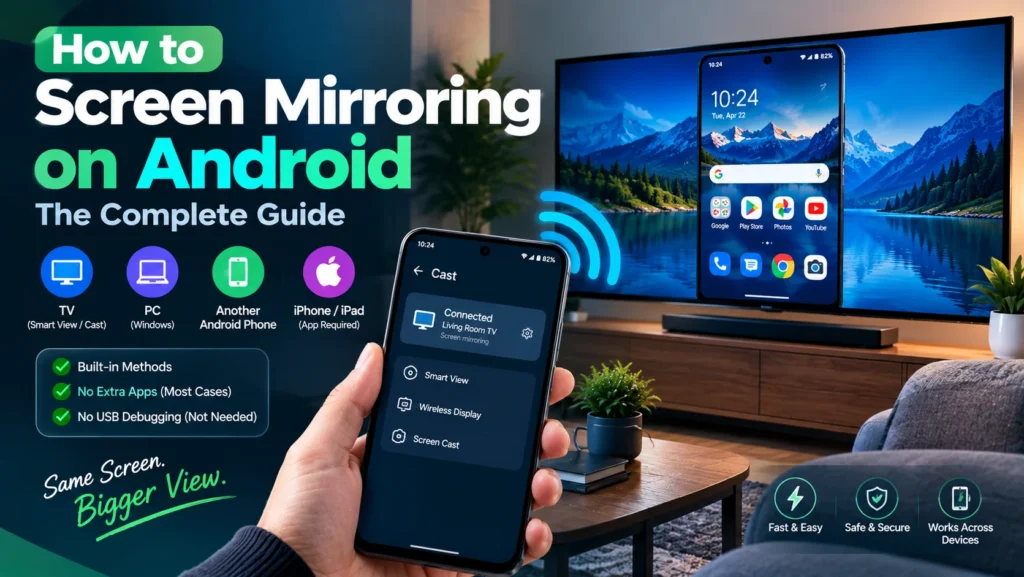
Maybe you want to show your parents a photo album on the living room TV, walk a coworker through a spreadsheet from across the room, or get a second opinion on something without handing your phone over. Screen mirroring on Android covers all of it, and the good news is you almost never need to install anything or change a risky developer setting to do it. This guide separates what actually requires an app from what your phone already does for free, corrects some outdated advice still floating around, and matches the right method to whether you are mirroring to a TV, a PC, or another phone.
Important warning before you start: you do not need to enable USB Debugging to mirror your screen to a TV, a PC, or another device for basic viewing. That is a developer only setting, and several outdated guides still recommend turning it on unnecessarily. Leaving it enabled longer than needed is a real security risk, so skip any guide that asks for it unless you are doing genuine remote device support.
Table of Contents
First, Know What You Are Actually Trying to Do
Most guides jump straight into app recommendations without asking the one question that actually determines the right method.
- Just showing someone your screen to view it: this needs nothing beyond your phone’s built in Cast or Wireless Display feature, no app, no account, no special permissions
- Mirroring to a TV or a PC you control yourself: built in casting still covers this in almost every case
- Letting someone remotely control or troubleshoot your phone from far away: this is the one situation where a dedicated app, and occasionally USB Debugging, genuinely becomes necessary
Confusing these three situations is exactly why so much existing content over complicates a task that is usually just a few taps.
Mirroring Android to a TV
- Make sure your phone and TV are on the same WiFi network.
- Swipe down twice on your phone to open the full Quick Settings panel.
- Tap Cast, Smart View, Screen Cast, or Wireless Display, the label depends on your phone’s manufacturer.
- Select your TV from the list and accept any confirmation prompt that appears on screen.
This works on the underlying technology called Miracast or Google Cast, both already built into Android, and neither needs an app purchase. One detail worth knowing: Google removed Miracast support from Pixel phones, so a Pixel can only mirror directly to a Chromecast, Google TV, or Android TV device, not to a Roku, Fire TV, or a plain smart TV without Google Cast support.
Mirroring Android to a PC
Windows includes a free, built in receiver for this that many people never realize exists.
- On your PC, open Settings, then System, then Projecting to this PC, and turn it on.
- If the feature is missing, go to Settings, then Apps, then Optional Features, add a feature, and install Wireless Display.
- On your Android phone, open Quick Settings and tap Cast, Screen Cast, or Wireless Display.
- Select your PC from the list, and your screen mirrors directly, no cable, no app, and no account required.
If you would rather connect with a cable instead, a USB-C to HDMI adapter works on phones that support video output over USB-C, plugged straight into a monitor or a laptop with an HDMI input, with zero setup and no wireless connection needed at all.
Mirroring Android to Another Android Phone or Tablet
This is the one situation where outdated advice causes the most confusion, since older guides jump straight to remote control apps requiring USB Debugging for what is often just a simple viewing need.
- Just want to show your screen briefly: Google Meet supports screen sharing directly from a phone with no extra app, start or join a meeting and tap Share screen
- Want ongoing, higher quality mirroring between two phones you both own: a Play Store screen sharing app works, but check that it connects over your local network rather than routing your screen through the developer’s own servers
- Actually need to remotely control or troubleshoot someone else’s phone: this is the legitimate case for a remote support app, and USB Debugging may genuinely be required, only enable it for this specific purpose and turn it back off once you are done
Mirroring Android to an iPad or iPhone
Android and Apple devices do not share a native mirroring standard, so this is the one case where a receiver app on the Apple device is genuinely required, since Apple’s AirPlay only receives from Apple’s own devices by default. A dedicated AirPlay receiver app installed on the iPad lets your Android phone cast to it over the same WiFi network, similar in spirit to casting to a smart TV. This is different from the phone to phone situation above, since it is solving a real cross platform gap rather than something Android already handles natively.
Why USB Debugging Should Not Be a Default Step
USB Debugging exists for app developers to test and inspect their own software on a connected device, and it grants a level of access to your phone that a normal screen mirroring task simply does not need. Several guides recommend turning it on as a routine step for basic phone to phone or phone to PC mirroring, which is unnecessary and mildly risky, since the setting remains active until you manually disable it again. If a mirroring method you are following asks you to enable USB Debugging and you are not doing genuine remote device troubleshooting, that is a sign to look for a simpler, native method instead.
Choosing a Third Party App Safely
For the cases above where a native method genuinely is not enough, evaluate any screen sharing or mirroring app the same way.
- Check whether the app connects over your local network directly or routes your screen through its own cloud servers, and prefer local connections for anything sensitive
- Confirm exactly what account information or sign up the app requires before you are willing to hand over screen access
- Read recent reviews specifically mentioning lag, connection drops, or unexpected charges after a free trial ends
- Uninstall or disable the app once you are done if you only needed it for a single, one time session
Comparing Your Real Options
| Goal | Best method | App needed | USB Debugging needed |
| Mirror to a TV | Built in Cast or Smart View | No | No |
| Mirror to a PC | Windows Projecting to this PC | No | No |
| Wired mirror to PC or monitor | USB-C to HDMI adapter | No | No |
| Briefly show your screen to another person | Google Meet screen share | No | No |
| Ongoing mirroring between two phones | A local network screen sharing app | Sometimes | No |
| Remote troubleshooting of another device | A dedicated remote support app | Yes | Sometimes |
Troubleshooting Common Screen Mirroring Problems
| Problem | Likely cause | Fix |
| Device does not appear in the list | Not on the same WiFi network, or too far apart | Confirm both devices share a network, or move closer for a direct connection |
| Connects but drops quickly | Weak WiFi signal or network congestion | Move closer to your router, or switch to a wired USB-C to HDMI connection |
| Video is choppy or delayed | Normal limitation of wireless mirroring under network strain | Close background apps, or use a wired connection for anything time sensitive |
| Pixel phone will not mirror to a non Google TV | Pixels do not support Miracast | Use a Chromecast, Google TV, or Android TV device instead |
Frequently Asked Questions
Do I need an app to mirror my Android screen?
For mirroring to a TV or a PC, no. Android’s built in Cast or Wireless Display feature and Windows’ own Projecting to this PC setting cover both cases with no app required.
Is screen mirroring safe?
Using your phone’s native casting feature over your own secured WiFi network is safe. Be more cautious with third party apps, checking whether they connect locally or route data through their own servers, and avoid mirroring sensitive information on an unsecured public network.
Why do some guides say I need USB Debugging just to mirror my screen?
That advice usually comes from guides built around remote control apps rather than simple viewing. Basic screen mirroring to a TV, PC, or for briefly showing your screen never requires enabling USB Debugging.
Can I mirror my Android screen without WiFi?
Yes. A USB-C to HDMI adapter mirrors your screen directly over a cable with no wireless connection at all, and it works on any phone that supports video output over its USB-C port.
Conclusion
Screen mirroring on Android is almost always simpler than it looks online, since your phone already includes everything needed to mirror to a TV or a PC for free. Match the method to what you are actually trying to do, viewing versus remote control are genuinely different needs, skip any guide that treats USB Debugging as a routine step, and evaluate third party apps by where your screen data actually goes before installing one. With the right native method in hand, mirroring your Android screen takes under a minute and costs nothing at all.