
A text sits there saying sending for far too long, or you switched phones last week and your messages are still trying to reach the old one. Learning how to change RCS to SMS solves both problems, and the fix itself takes under a minute once you find the right setting. This guide starts with a quick way to match your actual problem to the right fix, since flipping the master RCS switch is not always the best answer, then walks through every method for Android and iPhone, including a genuinely useful middle ground option almost nothing else mentions.
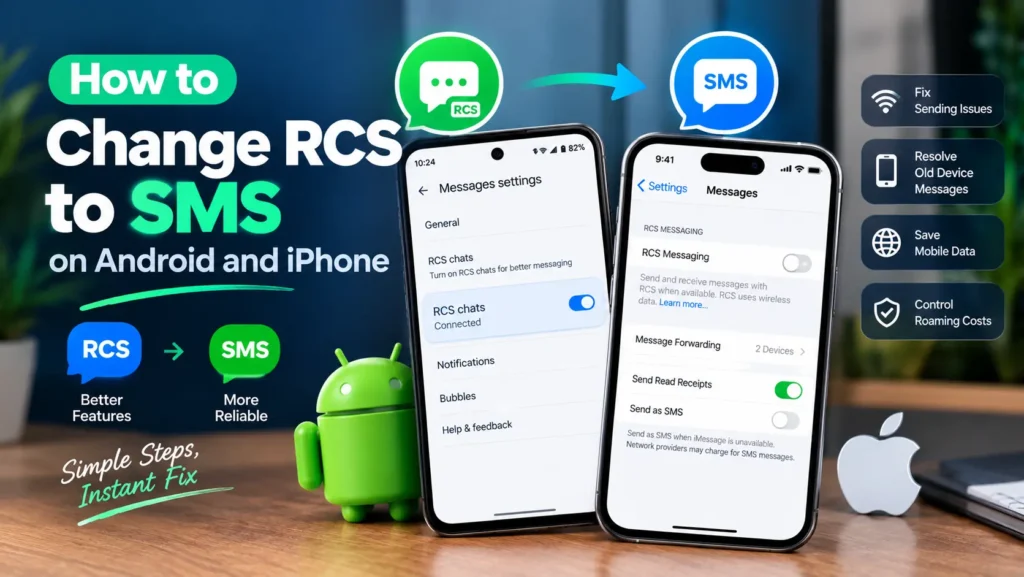
Quick answer: open Google Messages, tap your profile icon, go to Messages settings, then RCS chats, and turn it off. On iPhone, go to Settings, then Apps, then Messages, then RCS Messaging, and turn it off. Both changes apply to every conversation immediately.
Table of Contents
Match Your Problem to the Right Fix First
Before touching any setting, it helps to know that turning off RCS entirely is not always the correct move for every complaint. Find your actual situation below.
| Your situation | What actually helps |
| Messages get stuck on sending or fail often | Turn off RCS chats completely, or set automatic SMS fallback if you want RCS when it works |
| You switched phones and messages still go to the old one | Use Google’s remote deactivation tool rather than a setting on the new phone |
| RCS is using more mobile data than you would like | Adjust auto download settings for media instead of disabling RCS entirely, covered below |
| You are traveling internationally and want to control roaming costs | Turn off RCS chats before you travel, or disable mobile data for messaging specifically |
| You manage company phones and need messaging locked to SMS only | Use Android Enterprise managed configuration rather than the personal toggle |
A Quick Note on Terminology
This setting has gone by a few different names depending on which version of Google Messages you have, which causes real confusion when a guide’s screenshots do not match what you see. Look for Chat features, RCS chats, or simply RCS Messaging on iPhone, they all refer to the exact same setting. If your screen does not say the same words as this guide, you are very likely still in the right place.
How to Turn Off RCS on Android
- Open Google Messages.
- Tap your profile icon in the top right corner.
- Select Messages settings.
- Tap RCS chats, sometimes labeled Chat features.
- Turn off RCS chats.
This takes effect immediately, though restarting your phone afterward ensures the change fully saves. Avoid toggling RCS back on and off repeatedly, since Google specifically warns this can remove you from group chats unexpectedly.
How to Turn Off RCS on Samsung Messages
Samsung phones may use either Google Messages or the separate Samsung Messages app, and the steps differ slightly.
- Open Samsung Messages.
- Tap the three dot menu, then Settings.
- Select RCS chats settings, sometimes labeled Chat settings.
- Toggle RCS chats off.
Not sure which app you are using? Long press the messaging app icon on your home screen. Samsung Messages typically shows a yellow or blue chat bubble icon, while Google Messages shows a plain blue speech bubble.
How to Turn Off RCS on iPhone
- Open Settings.
- Tap Apps.
- Select Messages.
- Tap RCS Messaging.
- Turn it off.
Once disabled, conversations with Android users fall back to SMS and MMS automatically, still appearing as green bubbles the same as before, since green simply means not iMessage rather than specifically RCS.
If you only want to stop RCS messages specifically from businesses while keeping it for friends and family, look for RCS Business Messages under the same menu and turn off just that option instead of the whole feature.
The Middle Ground Nobody Mentions: Controlling Data Usage Without Disabling RCS
If your actual complaint is data usage rather than wanting to lose RCS features entirely, disabling RCS completely is a bigger step than you may need. Google Messages includes separate controls for how media downloads over your connection, tucked away from the main RCS toggle.
- Open Google Messages, tap your profile icon, then Messages settings.
- Look for Advanced, then Auto download files or a similarly named data option.
- Set media to download only over WiFi rather than always, which keeps typing indicators and read receipts while cutting the data heavy part of RCS.
This single adjustment solves the data usage complaint specifically without touching the master switch at all, and it is worth trying before assuming a full RCS to SMS switch is your only option.
Switched Phones? Use Remote Deactivation Instead
If your messages are stuck going to a phone you no longer have, the fix is not a setting on your new device at all, since RCS is tied to your phone number’s registration, not the physical phone in your hand.
- On any device, visit messages.google.com/disable-chat.
- Enter your phone number.
- Enter the verification code sent to you.
- Complete the deactivation.
One detail worth knowing: RCS can keep functioning on an old device for roughly eight days after you remove its SIM card, which is completely normal and not a sign that something went wrong with the deactivation.
What Happens to a Message Sent Right When You Switch
If you toggle RCS off while a message is actively mid send, it will typically complete as RCS if it was already in progress, then every message afterward goes out as SMS or MMS. You will not lose the message or need to resend it manually in most cases, though if something does appear stuck during the exact moment of switching, simply resending it once resolves the rare edge case.
Why Messages Get Stuck on Sending in the First Place
Understanding the root cause helps you decide whether disabling RCS is really the right fix. When you send a message, your phone briefly checks three things behind the scenes: whether RCS is turned on for you, whether the recipient can currently receive RCS, and whether you have an active data connection. If any one of these checks fails or times out, usually due to a weak signal, a temporary server issue on the carrier’s side, or the recipient’s connection dropping mid check, the message can sit in limbo rather than immediately falling back to SMS. This is exactly why a weak signal area causes far more stuck messages than a strong one, and why the problem often clears up on its own once you have a better connection, without needing to change any setting at all.
What Actually Changes After You Switch
| Feature | With RCS on | After switching to SMS |
| Read receipts | Available | Not available, delivered status only |
| Typing indicators | Available | Not available |
| Photo and video quality | Full resolution | Compressed through MMS |
| Message length | Effectively unlimited | 160 characters, longer texts split into parts |
| Group chats | Full featured | Basic MMS group limitations |
| Encryption | End to end between Google Messages users | None |
A Practical Tip for International Travel
RCS depends on a data connection, which means it can quietly use roaming data even just to load message previews and thumbnails while you are abroad. If you are traveling internationally and want to avoid a surprise roaming charge, turning off RCS chats before you leave, or disabling mobile data specifically for your messaging app, is a simple precaution worth taking a few minutes before your trip rather than discovering the cost afterward.
Troubleshooting: When RCS Will Not Turn Off
| Problem | Try this |
| RCS still active after toggling it off | Force close Google Messages, then restart your phone |
| Setting reverts back on its own | Clear the app’s cache under Settings, Apps, Google Messages, Storage, Clear cache |
| Still receiving RCS messages after all the above | Check whether your carrier has its own separate RCS configuration, common with some carriers in India and elsewhere, and contact carrier support if so |
| Nothing works at all | Reset network settings as a last resort, keeping in mind this also clears saved WiFi networks |
For Businesses and Managed Devices
If you manage company phones and need to guarantee messaging stays on SMS regardless of what individual employees set, the personal toggle above is not the right tool. Android Enterprise supports a managed configuration option that disables RCS at the device management level, and Apple’s device management platform includes a similar restriction for iOS. If you rely on SMS specific compliance controls, verify with your mobile device management provider that RCS is not quietly bypassing that policy, since some platforms have flagged this as a real gap between what administrators expect and what actually happens by default.
Frequently Asked Questions
Will switching from RCS to SMS delete my message history?
No. Your existing messages, photos, and conversation history remain exactly as they are. Only new messages going forward change from RCS to SMS and MMS.
Will the other person know I turned off RCS?
Not directly. They will simply stop seeing your typing indicator and read receipts, and photos you send will appear more compressed, but no notification tells them you made a change.
Can I turn off RCS for just one contact?
No. RCS is a global setting on both Android and iPhone, not something you can toggle per conversation. If you need to send one specific message as SMS, most Android builds let you press and hold a failed message and select Resend as SMS or MMS.
Can I switch back to RCS later?
Yes, at any time, by returning to the same setting and turning it back on. It may take a few minutes to reactivate, and some carriers send a verification text to confirm your number during that process.
Does turning off RCS affect iMessage on iPhone?
No. iMessage is a separate Apple only service for conversations between Apple devices, shown as blue bubbles. Turning off RCS only changes how your iPhone communicates with non Apple users, which will go as SMS or MMS instead, still shown as green bubbles either way.
Conclusion
Knowing how to change RCS to SMS is a genuinely quick fix once you find the right menu, but matching the fix to your actual problem first saves you from disabling more than you needed to. Try the data usage middle ground if that is your only real complaint, use remote deactivation specifically if you switched phones, and reach for the full toggle when you want guaranteed SMS reliability across the board. Whichever path fits your situation, the change takes effect in seconds and your message history stays completely intact either way.