
Maybe a friend borrows your phone to look up directions, or your kid wants to play a game, and you would rather certain apps not be sitting right there in the app drawer. Learning how to hide an app on Android actually gives you three genuinely different levels of privacy, not just one, and most guides only ever show you a single method without explaining which one actually fits your situation. This guide walks through all three, from a quick launcher toggle to a fully isolated, password protected space, and covers the real limitations, setup requirements, and honest detectability of each one.
Quick answer: for the strongest option, go to Settings, then Security and privacy, then Private Space, and set it up with its own lock. This creates a genuinely separate, encrypted area for apps, available on Android 15 and up.
Table of Contents
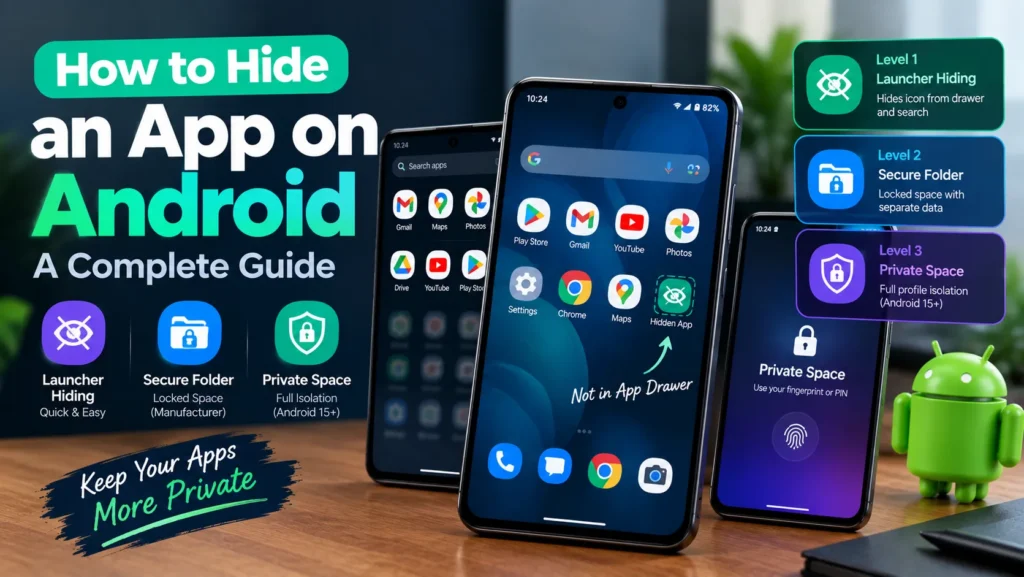
Three Ways to Hide Apps on Android, and Which One Fits You
| Method | What it actually does | Best for |
| Basic launcher hiding | Removes an app icon from the drawer and search, but its data and Play Store history remain visible elsewhere | Quick, casual privacy from someone briefly using your phone |
| Secure Folder (Samsung) or manufacturer equivalent | Moves apps into a separate, locked folder with isolated data | Samsung users wanting stronger isolation without a full separate profile |
| Private Space | Creates a fully separate, encrypted profile with its own lock, home screen, and optional separate Google account | Anyone wanting the strongest available protection on Android 15 and up |
Method 1: Basic Launcher Hiding
This is the fastest option and works on most Android phones, though the exact steps vary slightly by manufacturer.
- Swipe up from the home screen to open the app drawer.
- Tap the three dot menu in the top corner, then Settings.
- Select Hide apps.
- Choose the app or apps you want to hide, then confirm.
Be aware of the real limitation here. A hidden app disappears from the drawer and search, but its Play Store install history and app data folders remain visible to anyone who checks Settings, then Apps, or browses internal storage directly. This method hides an icon, not the fact that the app exists on your phone.
Method 2: Secure Folder and Manufacturer Equivalents
Several manufacturers built their own isolated, locked space well before Android had one natively, and these remain solid options today.
- Samsung offers Secure Folder, a password or fingerprint protected space where apps and their data stay completely separate from the rest of the phone, and the folder itself can be hidden from the app drawer for an added layer
- Huawei offers PrivateSpace, set up under Settings, then Security and privacy, working in a similar isolated fashion
- Other manufacturers, including Xiaomi and OnePlus, offer their own app lock or hidden space features under their security settings, though naming and depth vary by brand
The tradeoff with any of these is that you need to open the dedicated folder or space every time you want to use an app inside it, rather than launching it directly from your normal home screen.
Method 3: Setting Up Private Space
Private Space is Android’s own native answer to this, introduced in Android 15, and it goes further than either method above by creating a genuinely separate profile rather than just a locked folder.
- Open Settings, then Security and privacy, then Private Space.
- Tap Set up, then authenticate with your device screen lock.
- Choose to use your existing device lock for Private Space, or set a separate PIN, pattern, or password.
- Optionally sign in with a different Google account specifically for Private Space, covered in more detail below.
- Install or move apps into the space, which now appears at the bottom of your app drawer.
Private Space behaves like a second, independent phone layered inside your main one. Apps installed there do not run in the background or send notifications while the space is locked, and their data stays fully isolated from your main profile.
The Detail Almost Nobody Explains: Use a Separate Google Account
Setting up Private Space with the same Google account you already use elsewhere on your phone undermines part of the privacy it is meant to provide. Notifications, saved history, and synced data can bleed through when both spaces share one account. Using a distinct Google account specifically for Private Space keeps its contents genuinely separate, which matters most if the apps you are hiding involve messaging, photos, or anything else tied to an account rather than existing purely on device.
Hiding the Existence of Private Space Itself
By default, Private Space still shows a small label at the bottom of your app drawer, even while locked, which reveals that it exists at all.
- Open Settings, then Security and privacy, then Private Space.
- Tap Hide Private Space and turn it on.
- To access it again later, type private space into your app drawer’s search bar and authenticate through the padlock icon that appears.
This is genuinely useful for anyone who needs to keep certain apps private for personal safety reasons, such as someone dealing with a controlling or abusive partner who has access to their phone, not just casual privacy from a curious houseguest. Worth knowing honestly: hiding the label is not a perfect disguise. Anyone who knows this exact method and has access to your unlocked phone can still find and access it.
Third Party Launchers as a Lightweight Alternative
If your phone’s built in options feel like more setup than you want, a custom launcher from the Play Store can hide app icons or lock individual apps behind a PIN, without touching your phone’s actual security settings. This trades some of the deeper isolation that Secure Folder or Private Space provides for convenience and a more customizable home screen experience. Treat this as a lighter, cosmetic layer rather than a genuine security measure, since a determined person can usually still find the app through the phone’s main Settings menu regardless of what your launcher shows.
Who Cannot Use Private Space
This feature comes with real eligibility limits that catch people off guard when the option seems to be missing entirely.
- You must be the primary user of the device, not a secondary profile
- Your phone must be running Android 15 or later
- It can be disabled entirely by your phone’s manufacturer or by a workplace mobile device management policy
- It is not supported once a device already has more than four user profiles set up
If Private Space is missing from your Settings menu despite running a current Android version, one of these limits is the likely reason, and a manufacturer specific alternative like Secure Folder is worth trying instead.
A Known Issue Worth Knowing About
If you use a Wear OS smartwatch connected to your phone, be aware that Google has acknowledged known issues that can occur when Private Space is enabled alongside a paired Wear OS device. If notifications or syncing on your watch start behaving oddly after setting up Private Space, this connection is worth checking before assuming something else is wrong.
How Hidden Is Hidden: An Honest Comparison
| Method | Icon hidden | Data isolated | Existence detectable |
| Basic launcher hiding | Yes | No, data folders remain visible | Yes, through Play Store history and Settings |
| Secure Folder or equivalent | Yes | Yes | Folder icon can be hidden, but a knowledgeable searcher can still find it |
| Private Space | Yes | Yes, fully separate profile | Can be hidden from the drawer, but still findable through search by someone who knows the method |
No method available today makes an app or a hidden space completely undiscoverable to someone determined and technically aware. Each layer simply raises the effort required, and Private Space raises it the most.
Reversing Each Method
- Basic launcher hiding: return to launcher Settings, then Hide apps, and deselect the app to bring it back to the drawer.
- Secure Folder: open the folder, move the app back to your main profile, or simply stop using the folder for that app.
- Private Space: open Settings, then Security and privacy, then Private Space, then Delete to remove the space and everything inside it, or simply stop hiding its label if you only want to reveal it again.
Frequently Asked Questions
What is the strongest way to hide an app on Android?
Private Space, available on Android 15 and up, offers the strongest protection since it creates a fully separate, encrypted profile rather than just hiding an icon.
Can someone tell if I have hidden apps?
With basic launcher hiding, yes, fairly easily through Play Store history or the full app list in Settings. Private Space and Secure Folder are considerably harder to detect, though neither is completely undiscoverable to someone who specifically knows what to look for.
Do hidden apps still get notifications?
Apps hidden through basic launcher hiding continue to notify normally. Apps inside Private Space do not send notifications or run in the background while the space is locked.
Why is Private Space missing from my Settings?
Check that you are running Android 15 or later and are the primary device user, not a secondary profile. It can also be disabled by your manufacturer or a workplace device policy.
Can I hide apps without Android 15?
Yes. Basic launcher hiding works on most Android versions, and Samsung’s Secure Folder has been available for several years before Private Space existed, so older phones are not left without options.
Conclusion
Knowing how to hide an app on Android really means choosing the right layer for what you actually need. Basic launcher hiding takes seconds and works for casual privacy, Secure Folder and its manufacturer equivalents add real data isolation, and Private Space offers the strongest protection available today, especially when set up with its own separate Google account. Match the method to how much privacy the situation genuinely calls for, and remember that no option is a perfect disguise against someone determined and technically aware, layering the right method is what actually gets you real peace of mind.