
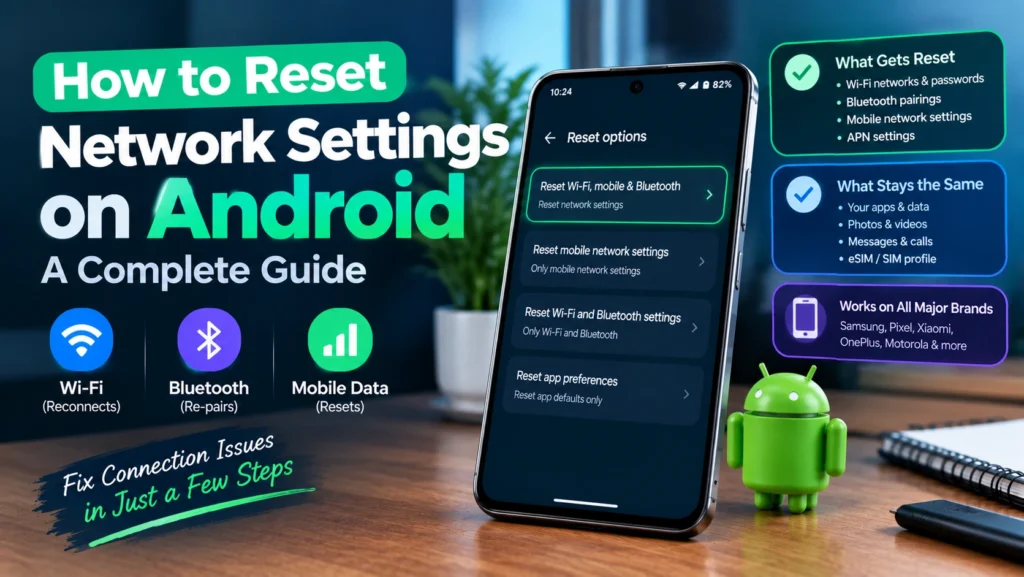
WiFi shows connected but nothing loads, Bluetooth refuses to pair with headphones it recognized yesterday, or mobile data quietly stopped working after a trip. Learning how to reset network settings on Android fixes all three, and it does it without touching a single photo, message, or app. This guide explains exactly what gets reset and what stays untouched, walks through the steps for every major phone brand, and covers several real consequences, from a silently reverted DNS setting to a lost custom APN, that most guides never mention at all.
Quick answer: go to Settings, then System, then Reset options, or General management, then Reset on Samsung phones. Choose Reset Wi-Fi, mobile and Bluetooth, or the separate mobile network reset on newer phones, then confirm. Your photos, apps, and messages are never touched.
Table of Contents
What Actually Happens When You Reset Network Settings
This clears your phone’s stored connection preferences and forces it to rebuild them from scratch. It is a genuinely different action from a factory reset, which is worth understanding clearly before you proceed.
| Gets reset | Stays untouched |
| Saved WiFi networks and passwords | Photos, videos, and documents |
| Paired Bluetooth devices | Installed apps and their data |
| Custom APN entries | Text messages and call history |
| VPN configurations you added manually | Your eSIM or physical SIM profile |
| Preferred network type and manual carrier selection | Contacts and saved accounts |
That eSIM point is worth repeating clearly, since it causes real anxiety for anyone who has set one up. Resetting network settings does not delete an eSIM. That is a separate, clearly labeled option in the same menu, and the two should never be confused.
Two Different Reasons People Search for This: Which Are You?
Most guides write for one of these situations without acknowledging the other exists, which leaves half their readers skimming past irrelevant content.
- Home or everyday use: WiFi randomly disconnects, Bluetooth headphones will not pair, or mobile data misbehaves without any recent travel involved
- Travel and eSIM use: you just landed in a new country, switched between eSIM profiles, or your phone is holding onto roaming rules from your last trip
The reset process itself is identical either way, but a few of the details further down this guide matter much more to one group than the other, so keep your own situation in mind as you read.
Reset Wi-Fi, Mobile and Bluetooth by Phone Brand
Samsung
- Open Settings, then General management, then Reset.
- Choose Reset network settings for everything at once, or the newer separate options for Reset mobile network settings and Reset Wi-Fi and Bluetooth settings if your phone offers them individually.
- Select your SIM if you have more than one active.
- Tap Reset settings and confirm with your PIN, password, or pattern.
Google Pixel
- Open Settings, then System, then Reset options.
- Choose Reset mobile network settings for cellular issues, or Reset Bluetooth and Wi-Fi for those connections specifically.
- Review the confirmation screen carefully, leaving any separate SIM erasure option unselected.
- Confirm the reset.
Xiaomi, Redmi, and POCO
- Open Settings, then About phone or Additional settings, then Backup and reset.
- Select Reset network settings, sometimes labeled Reset WiFi, mobile networks and Bluetooth.
- Confirm with your device PIN.
OnePlus and Motorola
- Open Settings, then System, then Reset options, the wording closely follows stock Android on both brands.
- Select the Wi-Fi, mobile and Bluetooth reset option.
- Confirm the reset on the following screen.
If your specific brand is not listed above, search Settings for the word Reset, since nearly every Android skin keeps this option somewhere under System or General management, just occasionally under a slightly different label.
What Nobody Tells You: Settings That Quietly Revert
Beyond the obvious WiFi passwords and Bluetooth pairings, a few settings people have deliberately configured get silently reset too, and discovering this after the fact is a genuinely common source of confusion.
- Private DNS: if you set up a custom Private DNS provider for ad blocking or extra security, it reverts back to automatic, quietly removing that protection until you notice and set it up again
- VoLTE and WiFi calling: these toggles can revert to their default state, which occasionally affects call quality or WiFi calling availability right after a reset
- Preferred network mode: this typically reverts to automatic selection, which is usually fine, but can matter if you had manually forced a specific network type for a reason
None of these are reasons to avoid resetting network settings when you genuinely need to. They are simply worth checking afterward rather than discovering weeks later when something feels slightly off.
Why Connectivity Problems Happen in the First Place
Understanding the root cause helps explain why a reset works as well as it does. Your phone constantly negotiates with cell towers, WiFi routers, and Bluetooth accessories using a set of remembered rules and preferences. Move between networks, switch carriers, or travel across regions, and those stored rules can conflict with what the new environment actually expects. A phone that keeps trying to reuse an outdated WiFi handshake or an old roaming preference is often the real reason behind a connection that shows as active but simply does not work. Resetting network settings forces your phone to discard all of that accumulated history and rebuild its connections cleanly from default settings.
A Note for Anyone Using Multiple eSIM Profiles
If you keep more than one eSIM installed, whether for travel or for separating work and personal lines, take a moment before resetting to note which profile is currently active and confirm your roaming preference for each. After the reset, re-enable only the eSIM you actually intend to use first, confirm it is correctly assigned for mobile data, and test that connection before turning any additional profiles back on. This one at a time approach avoids the confusion of multiple profiles competing for a data connection right after a fresh reset.
Reconnecting to Enterprise or Workplace WiFi
Reconnecting to your home WiFi after a reset is as simple as typing the password again. A workplace, university, or enterprise network is a different story, since these often use certificate based authentication or a username and password combination rather than a single shared password. Before resetting, check with your IT department or network administrator for the exact reconnection steps, or confirm you still have any required certificate file saved somewhere accessible, since losing access to that file can turn a two minute reconnection into a longer support ticket.
Network Reset vs Factory Reset
| Network reset | Factory reset | |
| Photos and files | Kept | Erased |
| Apps and app data | Kept | Erased |
| WiFi and Bluetooth settings | Erased | Erased |
| Best used for | Connectivity problems specifically | Selling a device or fixing deep software issues |
Always try the network specific reset first for a connectivity problem. A factory reset is a much bigger step that should only follow once you have confirmed the issue is not something a simple network reset already solved.
If the Reset Does Not Fix the Problem
- Toggle airplane mode on for twenty seconds, then off again, since this can clear a lingering DNS level issue that the reset alone occasionally leaves behind.
- Restart the phone completely rather than just toggling airplane mode.
- Check for a pending software update under Settings, then System, then System update.
- If mobile data specifically will not work, confirm your APN settings are correct, especially if you use a travel eSIM or an unconventional carrier that requires manual entry.
- If the problem is isolated to one specific network or country, consider whether your phone actually supports the local frequency bands, since no reset fixes a genuine hardware compatibility limitation.
Frequently Asked Questions
Does resetting network settings delete my photos or apps?
No. It only affects connection related settings like WiFi passwords, Bluetooth pairings, and APN entries. Your photos, apps, messages, and accounts remain completely untouched.
Will resetting network settings delete my eSIM?
No. An eSIM profile stays installed through a network reset. Deleting an eSIM is a separate, clearly labeled option that you would need to select deliberately.
How do I fix WiFi problems on Android without losing everything?
A network reset is exactly the tool for this, since it specifically targets WiFi, Bluetooth, and mobile data settings without touching your personal files, which is a much lighter step than a full factory reset.
Why did my custom DNS settings disappear after a reset?
Any custom Private DNS provider you configured reverts to automatic during a network reset. This is expected behavior, and reconfiguring it afterward under Settings, then Network and Internet, then Private DNS restores it.
How often is it safe to reset network settings?
There is no required schedule. Treat it as a targeted fix for an active connectivity problem rather than routine maintenance, and leave your settings alone if everything is already working normally.
Conclusion
Knowing how to reset network settings on Android gives you a genuinely low risk way to fix persistent WiFi, Bluetooth, or mobile data problems without touching a single photo or app. Find the right menu for your specific phone brand, expect to re-enter WiFi passwords and re-pair Bluetooth devices afterward, and double check a few easily forgotten settings like Private DNS and VoLTE once you are back online. Try this well before jumping to a full factory reset, since it solves the overwhelming majority of connectivity problems on its own, quickly and without the bigger cleanup a factory reset demands.