
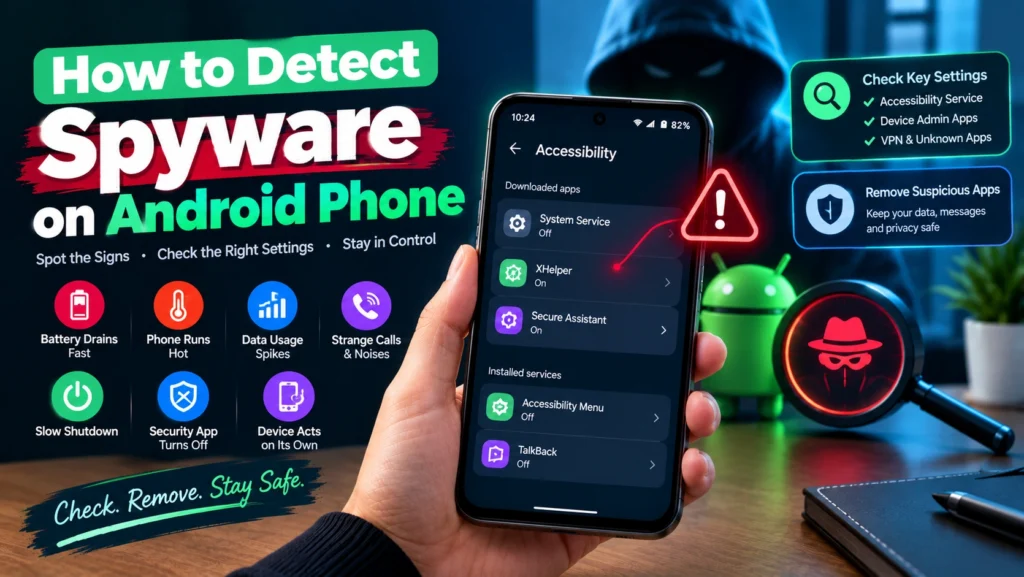
Your phone runs hot for no reason, the battery drains overnight while sitting untouched, or you notice a strange app you never remember installing. Learning how to detect spyware on Android phone starts with understanding that this software is specifically built to stay hidden, which is why the usual advice of just scrolling through your app list rarely tells the whole story. This guide walks through the checks that actually matter, starting with the one permission behind most modern spyware that general guides barely mention, and includes safety guidance for anyone concerned this may involve someone they know rather than a random online threat.
A note on safety before anything else: if you suspect spyware was placed on your phone by someone you know, such as a partner, ex partner, or family member, please read the safety considerations section further down before taking any action. Removing spyware can alert the person who installed it, which may not be safe depending on your situation.
Table of Contents
What Spyware Actually Is and How It Gets on Your Phone
Spyware is software installed specifically to monitor your activity, messages, calls, location, or camera and microphone, without your knowledge, and send that information to someone else. It differs from a virus in that it usually causes no visible damage to your phone, which is exactly what makes it dangerous, since there is often no obvious sign anything is wrong at all.
Most spyware reaches a phone one of two ways. The first is through disguised apps, spyware hiding inside something that looks legitimate, downloaded from outside the Play Store or occasionally slipping past review inside it. The second, and genuinely more common in cases involving someone the victim knows, requires brief physical access to an unlocked phone, since commercial monitoring apps are typically installed directly and take roughly fifteen to twenty minutes to set up.
Signs of Spyware on Your Android Phone
| Sign | Why it happens |
| Battery drains fast, even sitting idle | Spyware runs continuously in the background to monitor and transmit data |
| Phone runs hot while not in active use | Constant background processing generates heat even when you are not doing anything |
| Data usage spikes without explanation | Collected information has to be uploaded somewhere, which consumes data |
| Strange noises or interference during calls | Some spyware intercepts or records calls, which can cause audio artifacts |
| Phone takes unusually long to shut down | Background processes, including data transmission, need to finish before shutdown completes |
| Your security app or Play Protect turns off on its own | Some spyware specifically tries to disable protection so it can operate undetected |
| The phone lights up or acts on its own in standby | This can indicate remote commands being sent to the device |
No single sign here confirms spyware on its own, since a hot phone or a draining battery can have entirely ordinary causes. The combination of several signs together, especially alongside an unexplained data spike, is what should prompt a closer look.
The Most Important Check Most Guides Skip: Accessibility Service
This is genuinely the single most useful check for modern Android spyware, and it rarely gets the attention it deserves. Accessibility Service exists to help people with disabilities interact with their phone, letting an app read what is on screen and act on a user’s behalf. Spyware abuses this exact capability to read messages, capture what you type, and grant itself additional permissions without your involvement.
- Open Settings and search for Accessibility.
- Review every enabled service listed there.
- Look for anything unfamiliar, generically named, or that you do not remember turning on yourself.
- Turn off anything suspicious, keeping in mind that this alone may not fully remove the app, covered further below.
Two More Permissions Worth Checking
Device Admin Apps
Go to Settings, then Security, then Device admin apps, sometimes found under Apps, then Special app access on newer versions. This level of access can prevent an app from being uninstalled normally, which is exactly why spyware often requests it. Review this list the same way as Accessibility Service, looking for anything unfamiliar.
Notification Access
Go to Settings, then Apps, then Special app access, then Notification access. This permission lets an app read the content of your notifications, including one time codes and message previews. Revoke it from anything without a clear, legitimate reason to have it.
Why Checking for ‘Unknown Sources’ Is Outdated Advice
Older guides commonly suggest checking whether installing apps from unknown sources is enabled as a spyware indicator. This advice has not kept up with how Android actually works today. Since Android 8, this permission is granted per app rather than through one global switch, and someone installing spyware directly typically grants that one time permission, then it has no ongoing bearing on whether the app remains active. A clean unknown sources setting today tells you very little about whether spyware was installed in the past.
How to Manually Check Your Phone for Spyware
- Restart your phone into Safe Mode, which temporarily disables third party apps, by holding the power button, then pressing and holding Power off until the Safe Mode option appears.
- In Safe Mode, open Settings, then Apps, and turn on the option to show system apps as well.
- Look through the full list for anything unfamiliar, generically named like Service or System Update, or anything you do not remember installing.
- Check the Accessibility, Device admin, and Notification access permissions covered above.
- If you find something suspicious that will not uninstall, revoke its Accessibility and Device admin permissions first, then try uninstalling again.
- Restart normally and observe whether the symptoms that concerned you have improved.
Stalkerware vs Legitimate Monitoring Software: Telling Them Apart
Not every monitoring app is spyware in the malicious sense, and it helps to know the real distinction. Legitimate parental control software is generally visible, disclosed to the person whose device it is installed on, or at minimum installed by a parent on a device belonging to their own minor child. Stalkerware, by contrast, is defined by concealment, installed without the knowledge or consent of the person being monitored, often on an adult’s device, and specifically hidden from the app drawer and settings to avoid detection. The technology behind both can be nearly identical. The difference that actually matters is consent and disclosure, not the app itself.
If You Find Spyware: Safety Considerations First
This section matters more than any technical step above if there is any chance someone you know installed this software.
- Consider who has access to you and your phone before acting. If you believe a partner or family member is responsible, removing the spyware immediately may alert them that you know, which is not automatically safe depending on your situation
- Avoid discussing your suspicion out loud near the phone, by text, or by email if you believe the device itself may be compromised
- If you are concerned about your physical safety, contact a local domestic violence support service or a crisis line before taking any technical action, so you can think through a safety plan first. In the United States, the National Domestic Violence Hotline is available at 1 800 799 7233
- If you want to preserve evidence for police or legal purposes, avoid uninstalling anything yet, and consider documenting what you found with photos taken on a separate device instead
- If your safety is not an immediate concern, proceed with the removal steps in the next section whenever you are ready
Removing Spyware Safely
- Disconnect from WiFi and mobile data, using airplane mode, to stop the app from transmitting further data or receiving remote commands.
- Follow the manual detection steps above to identify and remove the suspicious app, revoking Accessibility and Device admin access first if needed.
- Run a scan with a reputable security app as a second check, since some spyware is specifically built to resist manual removal.
- If removal is not fully successful or you remain unsure, a factory reset guarantees a clean device, though back up personal files first and avoid restoring from a backup made after the suspected infection began.
- Change your important passwords afterward, starting with email and banking, ideally from a separate, trusted device.
Preventing Spyware Going Forward
- Keep a strong screen lock on your phone at all times, and avoid leaving it unlocked and unattended, since physical access remains the most common way spyware actually gets installed
- Install apps only from the Play Store, and be cautious of anything asking you to sideload a file from a link
- Review app permissions periodically, paying particular attention to Accessibility Service, Device admin, and Notification access
- Keep Android and all your apps updated, since many spyware infections rely on unpatched vulnerabilities
- Leave Google Play Protect turned on as a baseline layer of ongoing scanning
Frequently Asked Questions
Can spyware be installed on my Android phone without physical access?
It is possible through a disguised app or a phishing link, though commercial spyware used by someone you know typically requires brief physical access to your unlocked phone to install directly.
Will a factory reset definitely remove spyware?
In almost all cases, yes, since it wipes the device completely. Avoid restoring from a backup created after the suspected infection began, since that can reintroduce the same app.
Is checking Accessibility Service really that important?
Yes. Most modern Android spyware relies on Accessibility Service to read your screen and grant itself further access, which makes it the single most useful permission to review during a manual check.
What should I do if I am not sure it is safe to remove spyware right now?
If there is any concern about your physical safety, reach out to a local domestic violence support service or crisis line before taking any technical action, so you can build a safety plan around the timing and method of removal.
Conclusion
Knowing how to detect spyware on Android phone means looking beyond a quick scroll through your app list, since the permissions behind Accessibility Service, Device admin, and Notification access reveal far more than the app drawer ever will. Watch for a genuine combination of symptoms rather than any single one, and if there is any chance someone you know installed this software, prioritize your safety and a proper plan over immediate removal. Whether the threat turns out to be commercial stalkerware or a disguised malicious app, working through these checks calmly and in the right order is what actually gets your phone, and your privacy, back under your own control.