
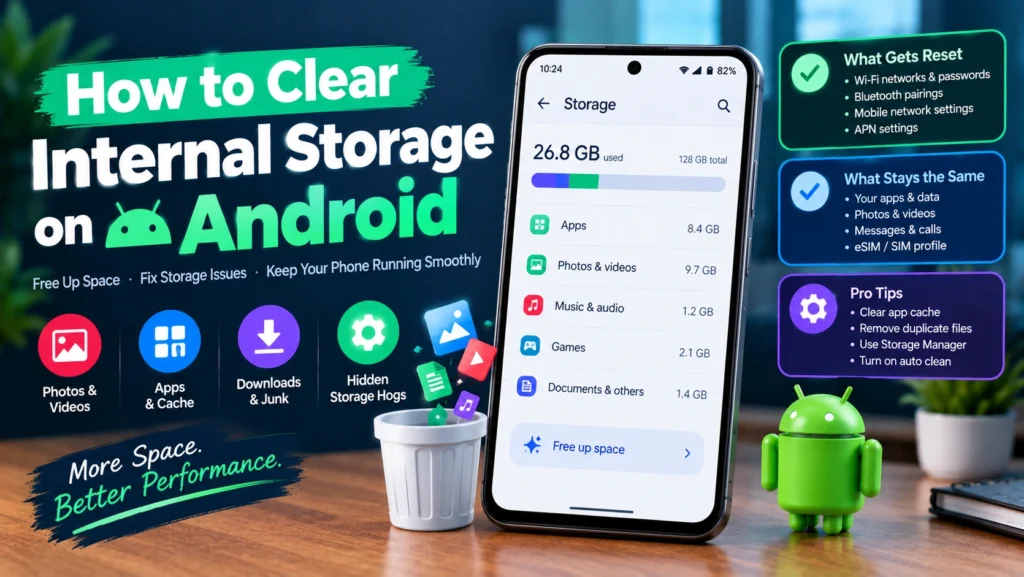
The storage full warning always seems to pop up at the worst moment, right as you are trying to take a photo or install something you actually need. Learning how to clear internal storage on Android does not have to mean an hour of aimless deleting, since a handful of specific spots hold the vast majority of wasted space on most phones. This guide ranks the fixes by how much space they actually recover, starting with the ones that matter most, and covers several hidden storage hogs and a genuine long term fix that most guides never mention at all.
Start here: open Settings, then Storage, and look at the breakdown sorted by size. Whatever category is largest, usually photos, videos, or a specific app, tells you exactly where to focus first instead of guessing.
Table of Contents
Start With a Real Diagnosis, Not Guesswork
- Open Settings, then Storage, or Battery and device care, then Storage on Samsung phones.
- Review the breakdown by category: apps, photos, videos, audio, and documents.
- Tap into whichever category is largest first, since that is where the real opportunity is.
- Within Apps, sort by size specifically, since one or two apps are often responsible for several gigabytes on their own.
Skipping this step is exactly why so many people spend twenty minutes deleting old screenshots and reclaim almost nothing, while the actual problem was a single messaging app’s media folder sitting untouched at six gigabytes the whole time.
Fix Storage Full on Android in Order of Impact
These are ranked deliberately. Start at the top for the fastest results, and only move further down the list if you still need more space.
1. Photos and Videos
This is almost always the single biggest category on a phone with more than a year of regular use. Back up your camera roll to Google Photos, then turn on storage saver or the free up space option, which removes the full resolution originals from your device once they are safely backed up, while still letting you view them normally through the app.
2. App Cache, the Fast and Safe Option
- Go to Settings, then Apps, then select an app, sorted by size from your earlier check.
- Tap Storage, then Clear cache.
- Repeat for your largest few apps rather than every app on your phone, since this is where most of the recoverable cache actually sits.
3. Duplicate and Unnecessary Photos
Open Google Photos, tap the Library tab, then Utilities, and look for Free up space or a duplicates option if your version offers one. This built in tool scans your library for accidental duplicates, near identical burst shots, and blurry rejects, and lets you clear them in a couple of taps rather than scrolling through thousands of photos manually.
4. Unused Apps
- Go to Settings, then Apps, and sort by last used date rather than size this time.
- Uninstall anything you have not opened in months, keeping in mind free apps can be reinstalled later at no cost.
5. Downloads and Junk Files
Open the Files app, tap Clean or Junk files, and clear out old installation leftovers and temporary data. Then check your actual Downloads folder separately, since forgotten PDFs, old ringtones, and attachments tend to pile up here without anyone noticing.
Hidden Storage Hogs Almost Nobody Checks
These rarely show up in a quick scroll through your files, yet they can quietly account for several gigabytes.
- Offline map areas: if you ever downloaded a city or region in Google Maps for offline use, it can sit there indefinitely. Check Google Maps, then your profile icon, then Offline maps, and remove anything you no longer need
- Downloaded podcast episodes: podcast apps often auto-download new episodes and keep old ones indefinitely unless you change the setting. Check your podcast app’s download management settings directly
- WhatsApp and Telegram auto downloaded media: both apps save every photo and video sent to you locally by default. Check each app’s storage settings and turn off automatic media download, then clear the existing media folder
- Screen recordings: these are far larger than photos and are easy to forget about entirely once recorded
Cache vs Data: What You Actually Lose
| Action | What it removes | What happens next time you open the app |
| Clear cache | Temporary files only, like thumbnail previews and search history | App reloads normally, slightly slower the first time only |
| Clear data | Everything, including your login, saved preferences, and any offline content | You start fresh, as if the app were just installed, and need to sign in again |
Clearing cache is always the safer first move. Only clear an app’s full data if you specifically want to reset it or you no longer care about its saved information.
The Truth About SD Cards in 2026
Older advice leans heavily on moving files to an SD card, but this is worth a reality check today. Most current flagship phones, and a growing share of mid range phones too, no longer include an SD card slot at all, having shifted entirely to fixed internal storage paired with cloud backup instead. If your specific phone does have a card slot, it remains a genuinely useful option for large files you rarely access, just be aware that moving an app itself, rather than just its photos or downloads, can occasionally break home screen widgets or cause its icon to disappear from view even though the app itself still works.
Finding Your Storage Settings by Phone Brand
| Brand | Menu path |
| Samsung | Settings, then Battery and device care, then Storage |
| Google Pixel | Settings, then Storage |
| Xiaomi, Redmi, and POCO | Settings, then Additional settings, then Storage cleaner |
| OnePlus and Motorola | Settings, then Storage, closely following stock Android |
If your exact brand is not listed here, searching Storage directly inside your Settings app will almost always surface the right menu regardless of how your manufacturer has labeled it.
The Long Term Fix: Automatic Storage Management
Manually cleaning up storage once solves today’s problem and nothing else. Several Android manufacturers include a genuinely hands off feature that keeps this from becoming a recurring chore, and it is worth turning on once rather than repeating this whole process every few months.
- Google Pixel: Settings, then Storage, then Storage Manager, which automatically removes backed up photos older than a set number of days once your storage runs low
- Samsung: Settings, then Battery and device care, then Storage, then Auto optimize, which handles unused file cleanup on a regular schedule
- Other manufacturers: search Settings for Storage Manager or Auto clean, since most current Android skins now include some version of this feature
Turning this on once is genuinely the closest thing to a permanent fix for a phone that keeps hitting its storage limit every few months.
A Detail Worth Knowing Before You Delete
Photos and videos deleted from your Gallery do not disappear immediately. They sit in a trash folder for 30 days before being permanently removed, which is a helpful safety net if you change your mind, but also means those files are still quietly counted against your storage during that window. If you are trying to free up space urgently and are confident about what you deleted, manually emptying the trash folder recovers that space immediately rather than waiting a month for it to clear on its own.
Frequently Asked Questions
Why does my Android phone say storage is full even after deleting apps?
Deleted apps sometimes leave cached data behind, and photos sit in a trash folder for 30 days rather than clearing immediately. Check Settings, then Storage, to confirm what is actually still taking up space.
Is it safe to clear app cache?
Yes. Clearing cache only removes temporary files and never deletes your account, login, or saved data within the app.
What is the fastest way to free up a lot of space at once?
Backing up and offloading your camera roll through Google Photos almost always recovers the most space in the least time, since photos and videos are typically the single largest category on any phone with meaningful use history.
Do I need an SD card to free up storage?
No. Most current phones do not include an SD card slot at all, and cloud backup through Google Photos or Google Drive accomplishes the same goal without needing any extra hardware.
How often should I check my phone’s storage?
Checking once every few weeks is enough for most people, and turning on your phone’s automatic storage manager reduces how often you need to think about it at all.
Conclusion
Learning how to clear internal storage on Android works best as a ranked process rather than a random cleanup session. Diagnose what is actually taking up space first, tackle photos and videos before anything else, and check the hidden spots like offline maps and messaging app media folders that quietly account for gigabytes nobody thinks to look at. Turn on your phone’s automatic storage manager once you are done, and the storage full warning becomes a problem you solve permanently rather than something you fight with every few months.