
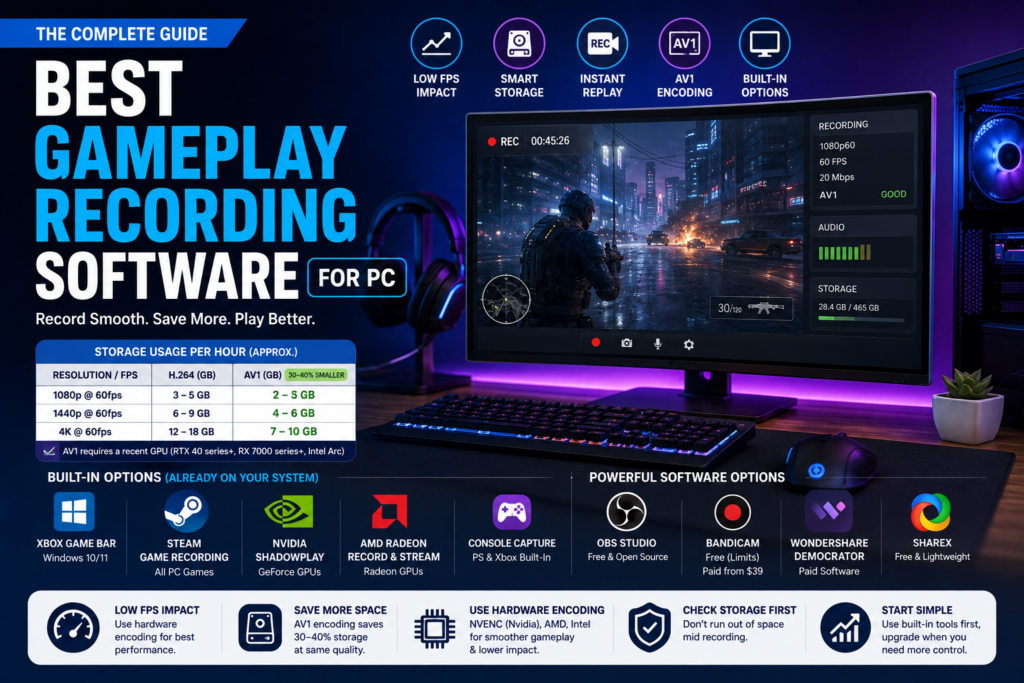
Most comparisons of gameplay recording software PC users search for skip the two numbers that actually matter, how much your frame rate will drop and how much storage you will burn through. That is a real gap, since those two factors decide whether a tool is actually usable during competitive play, not just whether it has a nice interface. This guide covers real FPS impact by encoding method, honest storage estimates at common resolutions, and the built in options already sitting on your PC or console that most roundups never mention. You will also get a straight look at AV1 encoding, a genuinely current feature that changes the storage and quality math if your hardware supports it. Let us start with the number that should come before any feature comparison.
Table of Contents
Performance Impact, the Number Most Comparisons Skip
Every gameplay recording software PC list claims minimal performance impact without saying what that actually means in frames per second, or which specific tool you are actually looking at. Here is how the most commonly recommended software compares, based on how each one encodes video behind the scenes.
| Software | Typical FPS Impact | How It Encodes | Cost |
| Nvidia ShadowPlay | 1 to 5 percent drop | Dedicated NVENC chip on Nvidia GPUs | Free |
| AMD Radeon Record and Stream | 1 to 5 percent drop | Dedicated encoder on recent AMD GPUs | Free |
| OBS Studio, set to hardware encoding | 2 to 6 percent drop | Uses your GPU’s NVENC, AMD, or Intel encoder | Free |
| Steam Game Recording | 2 to 6 percent drop | Hardware encoding plus Steam Overlay processing | Free |
| Xbox Game Bar | 3 to 8 percent drop | Hardware encoding where available, runs as a background process | Free |
| Bandicam | 3 to 8 percent drop | Hardware encoding with its own compression layer on top | Free with limits, paid from $39 |
| OBS Studio, set to CPU encoding (x264) | 10 to 25 percent drop | Software encoding competes directly with your CPU | Free |
| Elgato capture card plus a second PC | 0 percent | Encoding happens entirely on the second device | Hardware cost, around $150 and up |
The practical takeaway is simple. If your PC has a discrete Nvidia, AMD, or Intel Arc graphics card released in the last several years, picking a tool that uses hardware encoding, which covers ShadowPlay, Radeon Record and Stream, Steam Game Recording, and OBS set to a hardware encoder, matters more for your competitive performance than which specific app you choose among that group.
How Much Storage You Actually Need
Recordings fill a drive faster than most people expect, and almost no comparison gives real numbers. Here is a practical estimate at common settings, including the difference AV1 encoding makes when your hardware supports it.
| Resolution and Frame Rate | H.264 Encoding | AV1 Encoding | Notes |
| 1080p at 60fps | Roughly 3 to 5 GB per hour | Roughly 2 to 3 GB per hour | Comfortable for most gaming laptops and mid range PCs |
| 1440p at 60fps | Roughly 6 to 9 GB per hour | Roughly 4 to 6 GB per hour | A 1TB drive fills up faster than most people expect |
| 4K at 60fps | Roughly 12 to 18 GB per hour | Roughly 7 to 10 GB per hour | AV1 support requires a fairly recent GPU on both ends |
Checking your available drive space against these numbers before a long session saves you from discovering mid recording that you have run out of room.
What AV1 Actually Changes
AV1 is a newer encoding format supported by recent Nvidia, AMD, and Intel graphics cards, and it genuinely changes the equation for anyone recording gameplay regularly. At the same visual quality, AV1 files run roughly 30 to 40 percent smaller than the older H.264 format most recording software has defaulted to for years. The tradeoff is hardware support. You need both a graphics card with an AV1 encoder, generally Nvidia’s RTX 40 series or newer, AMD’s RX 7000 series or newer, or a recent Intel Arc card, and software that has added support for it, which OBS and several other tools now include as an export option. If your hardware qualifies, switching to AV1 is one of the easiest wins available for anyone tight on storage.
Built In Options Already on Your System
Before installing anything new, it is worth checking what your PC or console already includes, since several of these are genuinely capable and completely free.
Xbox Game Bar. Built into every Windows 10 and 11 install, accessible instantly with Windows plus G. No download needed, works across any game, and covers basic capture needs without any setup.
Steam Game Recording. Built directly into the Steam client, with automatic chapter markers, a replay buffer for capturing just the last few seconds, and basic trimming built in. Works even for non Steam games through the Steam Overlay, and runs on Steam Deck as well.
Nvidia ShadowPlay, part of GeForce Experience. Hardware encoded recording built for Nvidia graphics cards specifically, with instant replay and live streaming included at no extra cost.
AMD Radeon Record and Stream. The AMD equivalent of ShadowPlay, built into the Radeon Software driver package for any recent discrete AMD graphics card, with the same hardware encoding advantage and instant replay support.
Console capture, no extra hardware needed. Both PlayStation and Xbox consoles include a built in share or capture button that records and trims clips without any additional software or capture card at all, the simplest possible option if you are recording from a console rather than a PC.
For a huge share of casual capture needs, one of these five already covers the job before you need to consider installing anything else.
Free Standalone Software Worth Installing
Once built in tools stop being enough, typically once you want more control over scenes, sources, or streaming, a dedicated free tool is the next step. OBS Studio remains the standard here, genuinely open source with no watermark, supporting hardware encoding on Nvidia, AMD, and Intel graphics cards, plus a large plugin ecosystem. It has a real learning curve on first launch, but it is worth pushing through for anyone planning to record or stream regularly. ShareX is a lighter alternative worth knowing about if you mainly need quick captures and screenshots rather than a full production setup, though it lacks dedicated game capture and works better for simpler use cases.
Paid Software Worth Considering
Paid tools generally earn their price through convenience rather than raw capability, since free options now cover most core recording needs. Bandicam is a common recommendation for its lightweight footprint and reliable 4K capture, though its free version caps recordings at 10 minutes with a watermark. Wondershare DemoCreator bundles recording with a genuinely useful built in video editor, which saves a separate editing step for anyone planning to trim and share clips regularly. Neither is strictly necessary if a free tool already covers your needs, so it is worth testing the free tier of any paid option before committing.
A Note on Older Software Still Showing Up in Recommendations
A few tools that still appear in best gameplay recording software PC lists have not seen meaningful updates in years. Fraps is the clearest example, a tool that was genuinely excellent in its time but has largely stalled in development and can behave unpredictably on modern Windows versions. If a tool’s own site shows no update history in the last couple of years, treat that as a reason to look closer before installing it, regardless of how often it still appears in older articles.
Choosing the Right Gameplay Recording Software PC Setup for You
- Casual capture, no interest in editing: Xbox Game Bar or Steam Game Recording cover this without installing anything extra
- Nvidia graphics card, want instant replay and live streaming: ShadowPlay is built in and hardware accelerated already
- AMD graphics card, same needs: Radeon Record and Stream is the direct equivalent
- Planning to stream or need full scene control: OBS Studio is worth the initial learning curve
- Want recording and editing in one app without touching OBS: Wondershare DemoCreator or a similar bundled tool
- Recording from a console with no capture card: use the console’s own built in share or capture feature first
The best gameplay recording software PC setup for you comes down to your hardware and how often you actually plan to record, not which tool has the flashiest marketing page. Check whether your graphics card supports hardware encoding and AV1 first, since that decision affects your frame rate and storage more than any single feature comparison. Start with whatever is already built into your system, and only move to OBS or a paid tool once you genuinely need more control than the built in options give you.