
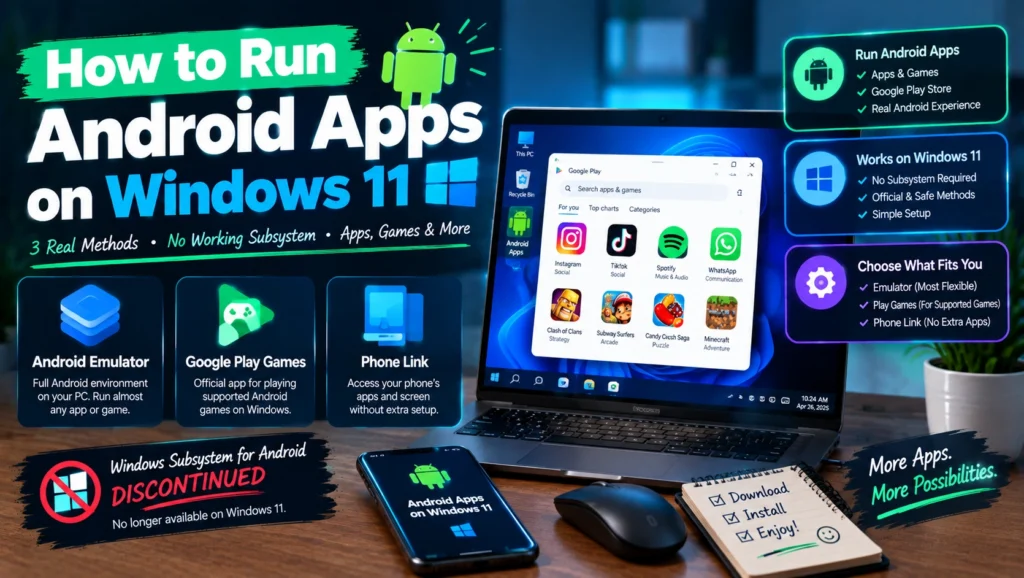
If you have followed an older guide on how to run Android apps on Windows 11 and hit a wall, that is not something you did wrong. Microsoft’s own built in solution for this, Windows Subsystem for Android, was shut down and can no longer be installed on any Windows 11 PC, which means a lot of the advice still circulating online simply does not work anymore. This guide skips that dead end entirely and covers the three paths that genuinely work today, an Android emulator for general app and game access, Google Play Games for PC for supported titles, and Phone Link for accessing your actual phone’s apps without installing anything Android related on your computer at all.
Important update: Windows Subsystem for Android and the Amazon Appstore were officially discontinued by Microsoft and can no longer be installed on Windows 11. If a guide tells you to search the Microsoft Store for the Amazon Appstore, that method no longer works and you should skip straight to the alternatives below.
Table of Contents
Why the Old Method Stopped Working
Windows Subsystem for Android was Microsoft’s official, built in way to run Android apps on Windows 11, working through a partnership with the Amazon Appstore. Microsoft discontinued it, and the Amazon Appstore was pulled from the Microsoft Store entirely as part of the shutdown. If you already had it installed and set up before that date, it may still technically launch, but it receives no updates, no security patches, and no new app installs, so treat it as something to move away from rather than rely on.
Three Real Ways to Run Android Apps on Windows 11 Today
| Method | What it does | Best for |
| Android emulator | Creates a full virtual Android environment on your PC | Installing and running nearly any Android app or game directly |
| Google Play Games for PC | Google’s own official app for playing supported Android games on Windows | A curated list of popular mobile games, played natively |
| Phone Link | Mirrors your actual phone’s apps and screen to your PC | Using the exact apps already on your phone, with no separate Android environment installed |
Method 1: Using an Android Emulator
An emulator is now the most complete and flexible way to run Android apps on Windows 11, since it creates a genuine virtual Android device on your PC rather than relying on any Microsoft feature at all.
Choosing an Emulator
| Emulator | Known for | Good fit for |
| BlueStacks | The most established and widely used option, with broad app compatibility | General use and anyone wanting the most mature, well documented option |
| MuMu Player | Strong performance and a lighter footprint on system resources | Users with a mid range PC wanting smoother performance |
| LDPlayer | Built with gaming performance and customization in mind | Mobile gamers who want fine tuned controls and frame rates |
| MEmu | Supports running multiple Android instances at once | Anyone needing more than one Android environment simultaneously |
Setting Up an Emulator
- Download your chosen emulator directly from its official website, avoiding third party download sites entirely.
- Run the installer and follow the setup prompts, which typically takes several minutes as it prepares the virtual Android environment.
- Open the emulator and sign in with a Google account when prompted, since this is required to access the Play Store.
- Open the Play Store inside the emulator and search for the apps you want, installing them exactly as you would on a real Android phone.
- Launch installed apps from the emulator’s home screen, using your mouse and keyboard to interact with them.
Method 2: Google Play Games for PC
This is Google’s own official application, built specifically for playing a curated selection of Android games natively on Windows, without the overhead of a full general purpose emulator.
- Download Google Play Games for PC from Google’s official site.
- Install it and sign in with your Google account.
- Browse the library for supported titles, which is limited to games Google has specifically optimized for this platform rather than the full Play Store catalog.
- Install and launch a game directly from the app.
The tradeoff here is real: you get a genuinely polished, official experience, but only for the specific games in this curated library, not general apps or the full range of Android titles an emulator can run.
Method 3: Mirroring Your Phone With Phone Link
If what you actually want is access to your own phone’s specific apps rather than a general Android environment, Phone Link is Microsoft’s own recommended path forward and avoids installing anything Android related on your PC at all.
- Install the Phone Link app on Windows, which comes preinstalled on most current Windows 11 systems.
- Install the Link to Windows app on your Android phone from the Play Store.
- Follow the pairing steps on both devices, which typically involves scanning a QR code with your phone.
- Once linked, open the Apps section in Phone Link on your PC to view and launch apps that are actually running on your connected phone.
This method shows you your phone’s real apps and data exactly as they exist on the device itself, streamed to your PC, rather than a separate Android installation with its own separate accounts and data.
Comparing System Requirements
| Method | Typical requirement |
| Android emulator | 8 GB RAM minimum, virtualization enabled in BIOS, a reasonably current processor |
| Google Play Games for PC | Similar to emulators, since it also relies on virtualization |
| Phone Link | A stable WiFi or Bluetooth connection between your phone and PC, both devices need to be nearby |
Whichever method you choose, confirm hardware virtualization is enabled in your PC’s BIOS settings if you plan to use an emulator or Google Play Games for PC, since both rely on it to create their virtual Android environment.
If You Are Troubleshooting a Broken WSA Setup Right Now
If you are here because Windows Subsystem for Android suddenly stopped working, showed an error, or an app refuses to open, this is expected behavior rather than something you can fix. Reinstalling WSA, resetting it, or searching for a workaround will not restore functionality, since the Microsoft Store no longer distributes it at all. The only real path forward is switching to one of the three methods above rather than continuing to troubleshoot a platform that Microsoft has fully retired.
What About Apps You Already Installed Through the Old Method
If you set up Windows Subsystem for Android before its shutdown, your previously installed apps may still open, but you should not count on this continuing indefinitely. With no further updates, compatibility tends to degrade over time as Android apps themselves update to expect a newer environment. Migrating to an emulator or Phone Link now, rather than waiting for something to eventually break, is the safer long term move.
Staying Safe With Third Party Emulators
- Only download an emulator from its official website, never a third party mirror or download aggregator
- Check that the installer is digitally signed and matches the file size listed on the official site
- Be cautious of emulators bundled with extra, unrelated software during installation, and decline any additional offers
- Keep your chosen emulator updated, since these applications receive regular security patches just like any other software
Frequently Asked Questions
Can I still use Windows Subsystem for Android?
No, not for a new installation. It was officially discontinued and removed from the Microsoft Store, and it cannot be installed fresh on any Windows 11 PC today.
What is the best way to run Android apps on Windows 11 now?
For general app and game access, an Android emulator like BlueStacks is currently the most complete option. For simply using your own phone’s apps without a separate Android environment, Phone Link is the lighter, official alternative.
Are Android emulators safe to use?
Reputable, well established emulators downloaded directly from their official websites are generally safe. Avoid third party download sites and be cautious of bundled software during installation.
Do I need a powerful PC to run an Android emulator?
Not necessarily powerful, but you do need hardware virtualization enabled and at least 8 GB of RAM for a smooth experience. Older or lower spec PCs may still run an emulator, just with more noticeable slowdown.
Why did Amazon Appstore disappear from my Windows 11 PC?
This is part of the same shutdown. Amazon Appstore on Windows was discontinued alongside Windows Subsystem for Android, and both were removed from the Microsoft Store at the same time.
Conclusion
Learning how to run Android apps on Windows 11 today means leaving the old Windows Subsystem for Android method behind entirely, since it no longer works for anyone starting fresh. An Android emulator remains the most complete and flexible option for general app and game access, Google Play Games for PC offers a polished experience for a curated game library, and Phone Link is the simplest route if you just want your own phone’s apps without a separate Android setup. Pick the path that matches what you are actually trying to do, and you will be up and running in minutes rather than chasing a method that stopped working over a year ago.