
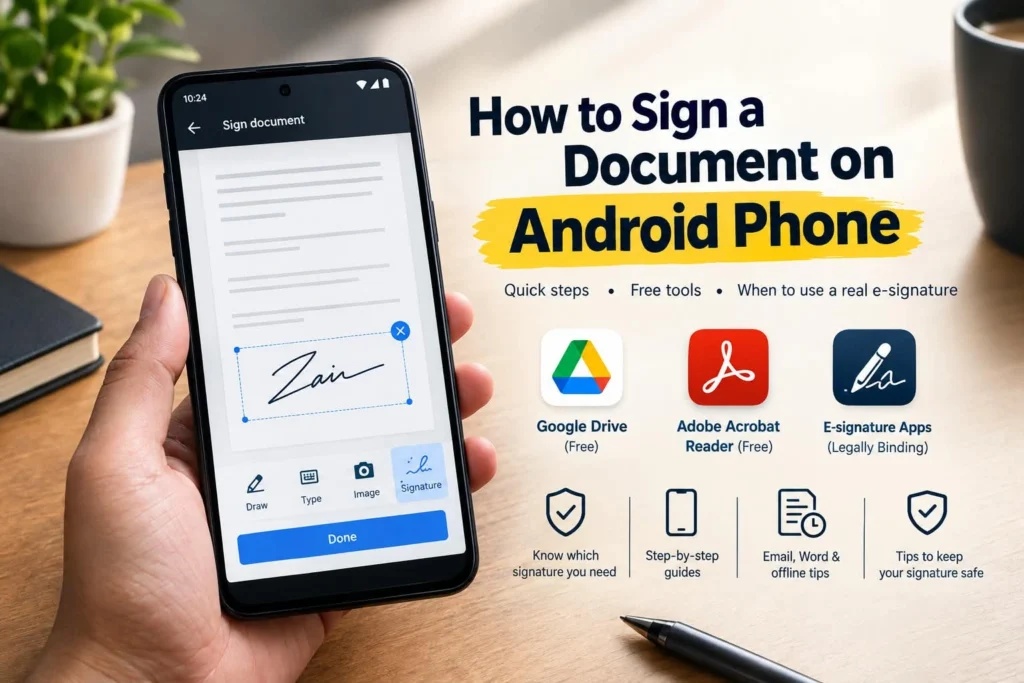
An email lands asking you to sign and return something today, and you are nowhere near a printer or a scanner. Learning how to sign a document on Android phone takes less time than finding a pen, and you likely already have a free tool sitting on your phone right now that most guides never mention. This guide covers the genuinely free built in options first, explains exactly when you need a real legally binding electronic signature instead of a quick doodle, and clears up a couple of details, like an old app that no longer exists under its original name, that trip people up on outdated guides.
Quick answer: if you already use Google Drive, open the PDF, tap the pen icon, then the signature tool, draw your signature, and save. No extra app download needed for a quick, simple signature.
Table of Contents
Quick Signature or Legally Binding: Know Which You Need First
This is the single most useful thing to sort out before picking a method, since it determines everything else. A quick signature is fine for something informal, a permission slip, an internal form, a simple acknowledgment. A legally binding electronic signature, compliant with laws like the ESIGN Act, is what you actually need for contracts, leases, HR paperwork, or anything where proof of who signed and when might matter later.
| Situation | What you need |
| A short form or informal acknowledgment | A quick built in signature, Google Drive or Adobe Acrobat Reader both work |
| A contract, lease, or legal agreement | A dedicated e-signature tool with a time stamped audit trail |
| A document with many signers or many signature fields | A dedicated signing app rather than a quick built in tool |
| Something you need to send and track for someone else to sign | A tool specifically built for requesting signatures, not just adding your own |
Method 1: Signing a PDF for Free With Google Drive
This is genuinely the option most people already have installed and never think to use, since it requires no extra download at all.
- Open the Google Drive app and locate the PDF you need to sign.
- Tap the document to open it, then tap the pen or edit icon.
- Select the signature tool from the toolbar.
- Draw your signature with your finger, then tap to confirm.
- Place and resize the signature on the document, then save.
This works well for a quick, informal signature, but it does not include a time stamped audit trail, so it is not the right tool for a document where you may need to prove exactly when and how it was signed.
Method 2: Signing a PDF With Adobe Acrobat Reader
- Install Adobe Acrobat Reader from the Play Store if you do not already have it.
- Open your PDF within the app.
- Tap Fill and Sign from the toolbar.
- Fill in any text fields the document requires.
- Tap the signature tool, draw your signature, and place it on the document.
- Save and share the finished document directly from the app.
A detail worth knowing if you followed an older guide: the once popular standalone Adobe Fill and Sign app has been retired. That functionality now lives inside the main Acrobat Reader app, so if you are searching for an app that no longer exists by that name, this is why.
Method 3: Getting a Genuinely Legally Binding Signature
When the document actually matters legally, a dedicated e-signature tool is worth the extra step. Apps like Xodo Sign, DocuSign, and similar tools add a time stamped audit trail to every signature, recording exactly when and how the document was signed, and are built to comply with major electronic signature laws.
- Install a dedicated e-signature app from the Play Store.
- Import or open your document within the app.
- Use the app’s signature tool to add your signature to the designated field.
- Complete the signing process, which typically generates a certificate or audit trail alongside the finished document.
If you need to collect a signature from someone else rather than just add your own, these same apps let you send a document out, track whether it has been opened, and receive it back fully signed, something the quick built in tools above cannot do at all.
Signing a Word Document, Not Just a PDF
Every method above assumes a PDF, and that is not an accident, since signing directly inside a Word document on a phone is genuinely limited. If you receive a Word file and do not need to preserve its exact original format, the simplest path is converting it to a PDF first, most file and document apps include a Save as PDF or Export as PDF option, and then signing the converted PDF using any of the methods above.
Signing Without an Internet Connection
If you already have the document saved locally on your phone, opening it and adding a quick signature generally still works without an active connection. Where you will need internet access is anything involving sending the document afterward, sharing it by email, uploading it to cloud storage, or using a dedicated e-signature app’s request and tracking features, all of which require a connection to actually reach the other person or sync your account.
Signing Straight From an Email Attachment
Most people encounter this task exactly the same way, an email arrives with a PDF attached and a request to sign it. You do not need to save the file separately first in most cases.
- In Gmail, tap the PDF attachment, then choose Open with when prompted, and select Google Drive, Adobe Acrobat Reader, or your preferred signing app directly from that menu
- Sign the document using whichever method fits the situation, following the steps above
- Once signed, use the app’s own share option to reply directly to the original email or send the signed file as a new attachment
This shortcut skips a separate download step entirely and is worth knowing since it matches how most people actually receive documents that need a signature in the first place.
Making Sure Your Signature Actually Holds Up
- Keep your signature reasonably consistent with how you normally sign, since a wildly different scribble each time weakens its credibility if it is ever questioned
- Only sign documents from senders and sources you trust, and confirm you are using a secure connection before entering any personal information
- Read the full document before signing, especially on a small screen where it is easy to skim past a clause you would otherwise catch
- For anything legally significant, choose a tool that generates an audit trail rather than relying on a quick built in signature alone
Comparing Your Options
| Method | Cost | Audit trail | Best for |
| Google Drive | Free | No | A quick, informal signature with no extra app |
| Adobe Acrobat Reader | Free | No | Filling out forms and signing PDFs with more editing tools |
| Dedicated e-signature app | Free tier available, paid plans for more use | Yes | Contracts, leases, and anything legally significant |
Frequently Asked Questions
Is signing a document on my Android phone legally valid?
A quick signature added through a free tool like Google Drive can be valid for informal purposes, but for something legally significant, use a dedicated e-signature app that generates a proper time stamped audit trail.
Do I need to download an app to sign a document on Android?
Not necessarily. If you already have Google Drive installed, its built in signature tool covers a quick, informal signature with no additional download required.
Can I sign a Word document directly on my phone?
It is more limited than signing a PDF. Converting the Word file to a PDF first, then signing that, is the simplest and most reliable path if preserving the original Word format is not essential.
What happened to the Adobe Fill and Sign app?
It has been retired as a standalone app. Its features are now built directly into the main Adobe Acrobat Reader app, so look there instead if an older guide references the separate app by name.
Conclusion
Knowing how to sign a document on Android phone comes down to matching the tool to what the document actually requires. A free option like Google Drive or Adobe Acrobat Reader covers most everyday, informal signatures in under a minute, while anything with real legal weight deserves a dedicated e-signature app with a genuine audit trail behind it. Check which situation you are actually in before you start, and signing on your phone becomes faster and more reliable than digging out a printer ever was.