
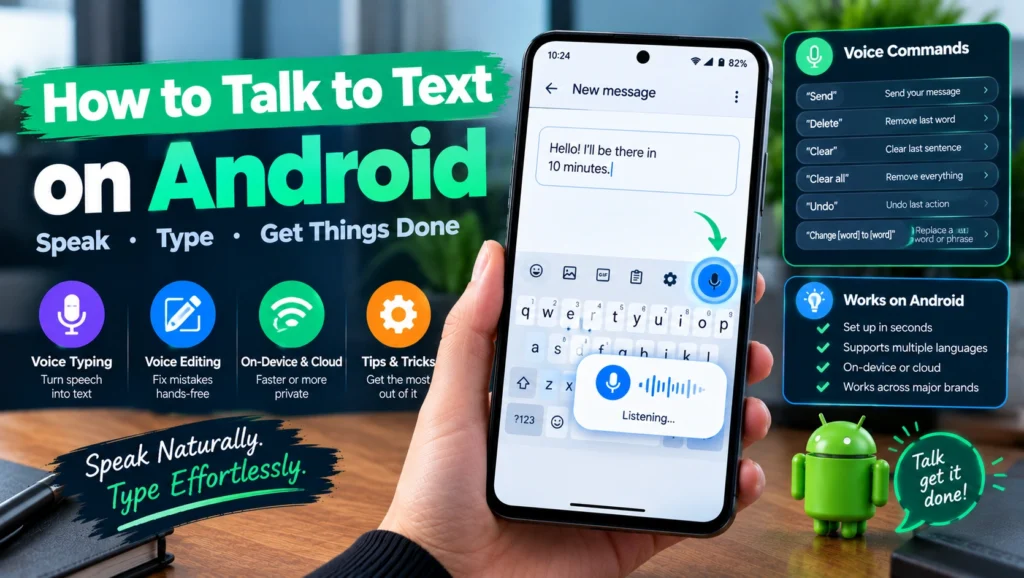
Thumbs get tired, texting while walking is a recipe for a stubbed toe, and some thoughts just come out faster spoken than typed. Learning how to talk to text on Android takes about ten seconds to turn on, yet most people are still using it the exact same basic way they were five years ago, tap the mic, speak, tap again. Google has quietly added real editing power to voice typing recently, letting you fix mistakes with your voice instead of your thumbs, and this guide covers that along with everything else most articles on this topic leave out or never update.
Quick answer: tap any text field to open your keyboard, then tap the microphone icon, usually in the top right corner of Gboard. Speak naturally, and your words appear as text. Tap the microphone again, or say Stop, when you are finished.
Table of Contents
Turning On Voice Typing on Android
- Open Settings, then System, then Languages and input.
- Tap On-screen keyboard, then select Gboard, or your default keyboard app.
- Tap Voice typing and confirm it is turned on.
- Grant microphone permission if prompted, since voice typing cannot work without it.
Most Android phones ship with this already enabled, so if you tap and hold the microphone icon on your keyboard and it responds, you can skip straight to using it.
How to Talk to Text on Android Day to Day
- Open any app where you can type, such as Messages, Gmail, or Notes.
- Tap the text field to bring up your keyboard.
- Tap the microphone icon at the top of Gboard.
- Speak clearly and at a natural pace, watching your words appear as you talk.
- Tap the microphone again, tap elsewhere on the screen, or say Stop to finish.
Punctuation is added automatically as you speak in most cases, though you can also say words like comma, period, or question mark directly if you want more precise control over where they land.
Editing What You Said, By Voice
This is the part most existing guides never update, and it has genuinely changed how useful voice typing can be. Beyond the basics, Gboard now supports real voice commands for fixing mistakes without ever touching the screen.
| Voice command | What it does |
| Send | Sends your dictated message immediately in supported apps |
| Delete | Removes the last word you said |
| Clear | Removes the entire last sentence |
| Clear all | Removes everything you have dictated in that field |
| Undo | Reverses the last Clear or Delete action |
| Change [word] to [word] | Replaces a specific word or phrase without retyping the whole sentence |
That last command is the newest and most genuinely useful addition. If Gboard mishears a word, you no longer need to tap the screen, select the wrong word, and retype it. Simply say change followed by what it heard and what you actually meant, and it corrects the text on its own. This currently works best on newer Pixel devices, though Google has been expanding it to other Android phones over time.
Online vs On-Device: Why It Matters for Speed and Privacy
Voice typing on Android works in one of two ways depending on your specific phone, and understanding the difference explains both the speed and the privacy of what you are actually using.
- Cloud based processing: your voice is sent to Google’s servers, transcribed there, and sent back as text, which requires an internet connection and introduces a small delay
- On device processing: available on newer Pixel phones and expanding to more devices, this runs the entire transcription locally on your phone, which means it works offline and responds faster since there is no round trip over the internet
Not every phone or language supports on-device processing yet, so if your voice typing feels slower or stops working without WiFi or data, that is very likely why. Check Settings, then your keyboard’s voice typing settings, for an option related to offline speech recognition to see what your specific device supports.
Why Android and iPhone Handle This Differently
If you have used Gboard on both an Android phone and an iPhone, you may have noticed the experience is not quite identical, and there is a real architectural reason for that. On Android, the microphone in Gboard connects directly to Google’s own speech recognition engine, built into the operating system itself. On iPhone, Gboard’s microphone is more of a pass through, relying on Apple’s underlying dictation system rather than a fully native Google engine. This is why voice typing can feel slightly more integrated and consistent on Android specifically, since it is not layered on top of another company’s speech system.
Being Honest About the Limits
Voice typing has improved a great deal, but it is worth knowing where it still falls short before you rely on it for something important.
- Editing by voice remains limited to a fairly small, fixed set of commands, and anything beyond a simple word swap still generally needs manual editing
- Accuracy drops in loud environments, with strong background noise, or with less common names and technical terms
- Accents and speech patterns outside what the model was trained heavily on can see noticeably lower accuracy, though this continues to improve over time
- Cloud based transcription pauses entirely without an internet connection unless your specific device supports on-device processing
Tips for Better Accuracy
- Speak in complete phrases rather than pausing after every word, since natural speech patterns help the model predict context correctly
- Use a wired or Bluetooth microphone in noisy environments, which reduces background interference significantly
- Review dictated text before sending anything important, since even strong accuracy still means occasional misheard words
- If you regularly speak more than one language, check whether your keyboard supports multilingual typing under its language settings, which lets you switch between languages mid sentence without manually changing your keyboard language each time
Fixing Common Voice Typing Problems
| Problem | Likely cause | Fix |
| Microphone icon is missing from the keyboard | Voice typing is turned off, or microphone permission was denied | Check Settings, then Languages and input, then your keyboard’s voice typing setting |
| Words are consistently misheard | Background noise, a fast speaking pace, or an uncommon word | Move to a quieter space, speak a little slower, or manually correct the specific word |
| Voice typing stops working with WiFi or data off | Your device relies on cloud based processing rather than on-device | Check whether your phone supports offline voice typing under your keyboard’s settings |
| Punctuation is not appearing correctly | Automatic punctuation can misjudge natural pauses | Say punctuation marks directly, such as comma or period, for more precise control |
Other Ways to Convert Speech to Text on Android
Gboard’s built in voice typing covers most everyday needs, but a couple of other tools are worth knowing about for specific situations.
- Google Assistant: say a command like send a message to followed by a contact name, which combines voice typing with hands free sending in one step
- Recorder app: on Pixel phones, this transcribes entire recorded conversations or voice memos into searchable text, better suited to longer recordings than live dictation
- Third party dictation apps: some offer additional customization or claim higher accuracy for specific use cases, though Gboard’s built in option remains free and requires no extra installation for most everyday talk to text needs
Frequently Asked Questions
How do I talk to text on my Android phone?
Tap any text field to bring up your keyboard, tap the microphone icon at the top of Gboard, and speak. Your words appear as text, and tapping the microphone again or saying Stop ends the session.
Can I edit dictated text using only my voice?
Yes, to a real degree. Commands like Delete, Clear, and the newer Change one word to another word let you fix mistakes without touching the screen, though more complex edits still need manual typing.
Does voice typing work without an internet connection?
On phones and languages that support on-device processing, mainly newer Pixel devices currently, yes. On other devices relying on cloud based transcription, an internet connection is required.
Why does voice typing work differently on my iPhone than my Android phone?
Gboard’s microphone connects directly to Google’s own speech engine on Android, while on iPhone it relies on Apple’s underlying dictation system instead, which can make the experience feel slightly less consistent on iPhone.
Conclusion
Learning how to talk to text on Android takes seconds to set up, but genuinely using it well means knowing about the newer voice editing commands, understanding whether your phone processes speech on-device or in the cloud, and having realistic expectations about its current limits. Try the change one word to another correction command the next time voice typing mishears you, and you may find yourself reaching for your thumbs far less often than you expect.
Pingback: How to Sign a Document on Android Phone: Easy Methods