
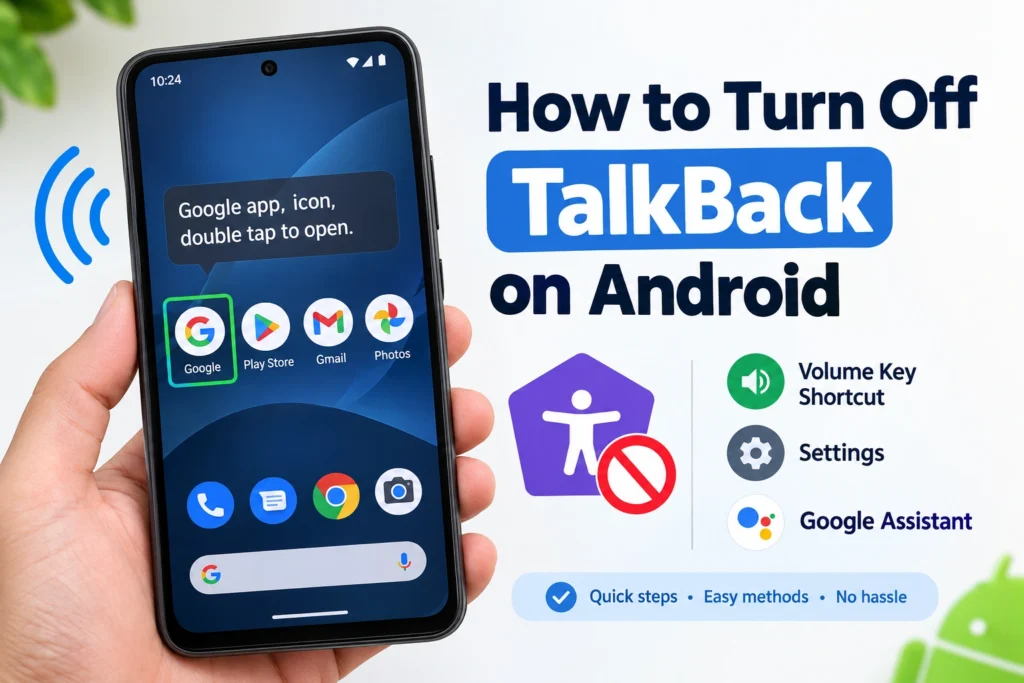
Your phone suddenly starts narrating everything on the screen, taps stop working the way they used to, and panic sets in fast. Learning how to turn off TalkBack on Android takes less than thirty seconds once you know where to look, but the real challenge for most people is figuring out how to navigate a phone that no longer responds to a normal tap. This guide starts with exactly that, how to get around while TalkBack is still on, then walks through every real way to disable it, ranked by speed, plus a couple of details about the lock screen and accidental activation that most guides never mention.
Fastest method: press and hold both the Volume Up and Volume Down keys at the same time for about 3 seconds. You will hear or see a confirmation, and TalkBack turns off immediately, no settings menu needed.
Table of Contents
First, How to Navigate With TalkBack Still On
Before touching any menu, it helps to know that TalkBack changes how your entire screen responds to touch, which is exactly why so many people feel stuck the moment it turns on.
- A single tap now selects and describes an item out loud, it does not open it
- A double tap on that same item is what actually activates it, replacing your normal single tap
- Swipe right or left with one finger to move between items on screen, rather than tapping around randomly
- A two finger swipe generally scrolls the screen the way a normal one finger swipe used to
Keep this in mind as you work through Settings below, since forgetting to double tap is the single biggest reason people feel like the phone is not responding at all.
Turn Off TalkBack on Android Using the Volume Key Shortcut
- Locate the Volume Up and Volume Down keys on the side of your phone.
- Press and hold both keys at the same time for about 3 seconds.
- Confirm when prompted, either by tapping OK or double tapping it if TalkBack is already active.
This only works if the accessibility shortcut was enabled when TalkBack was first turned on, which is genuinely common since Android suggests it by default. If nothing happens after a few seconds, move on to the settings method below.
Turn Off TalkBack Through Settings
- Open the Settings app.
- Tap Accessibility, then Vision if your phone groups it under a Vision category.
- Tap TalkBack.
- Turn off the switch next to Use TalkBack, remembering to double tap it if TalkBack is still active.
- Confirm by tapping, or double tapping, Stop or OK on the prompt that appears.
On Samsung phones specifically, this menu can be organized slightly differently. Look under Settings, then Accessibility, then Installed apps or Vision enhancements, since Samsung‘s One UI occasionally nests TalkBack one level deeper than stock Android does.
Turn Off TalkBack Using Google Assistant
- Wake Google Assistant by saying Hey Google, or by whichever method you normally use.
- Say Turn off TalkBack.
- Follow any spoken confirmation Assistant gives you.
This is genuinely the easiest method if talking is easier for you in the moment than trying to navigate a screen that keeps reading itself aloud.
Why TalkBack Turned On in the First Place
Understanding this helps prevent it from happening again right after you turn it off. The volume key shortcut that lets you quickly toggle TalkBack is exactly the same gesture that accidentally triggers it, holding both volume buttons together for a few seconds, which happens surprisingly often when a phone is jostled in a pocket, bag, or by a curious child. If this keeps happening to you, disabling the shortcut entirely, covered next, stops it from being triggered by accident going forward.
Disabling the Volume Key Shortcut Entirely
If you would rather free up your volume buttons so this cannot happen again, you can turn off the shortcut separately from TalkBack itself.
- Open Settings, then Accessibility.
- Tap TalkBack, or whichever accessibility service you want to stop shortcutting.
- Tap the shortcut setting, often labeled Accessibility shortcut or Volume key shortcut.
- Turn off the shortcut option, then save if prompted.
Blocking TalkBack From the Lock Screen
This is worth doing for a genuinely practical reason most guides skip entirely. Even after disabling the general shortcut, some Android versions still allow TalkBack to be triggered from the lock screen specifically, meaning someone could activate it on your phone without ever unlocking it. Turning this off closes that gap.
- Go to Settings, then Accessibility, then scroll to find a section related to shortcuts
- Look for an option labeled Allow from lock screen, or a similar Shortcut from lock screen setting, often under an advanced or experimental section
- Turn it off to prevent the shortcut from working before your phone is unlocked
TalkBack vs Similar Sounding Features
If disabling TalkBack did not fully stop your phone from behaving unexpectedly, you may actually be dealing with a different accessibility feature entirely.
| Feature | What it actually does |
| TalkBack | A full screen reader that narrates everything and changes how touch gestures work across the entire phone |
| Select to Speak | Reads aloud only specific items you choose to tap, without changing your normal touch gestures elsewhere |
| Voice Access | Lets you control your phone using spoken commands instead of touch, a different function from screen narration |
If your phone is still behaving strangely after turning off TalkBack, check Settings, then Accessibility, for either of these other two features enabled alongside it.
If None of These Methods Seem to Work
- Restart your phone completely, since a fresh restart occasionally clears a stuck accessibility state that a toggle alone did not
- Confirm you are double tapping rather than single tapping every button and switch while TalkBack remains active, since this is by far the most common reason a method appears to fail
- If your phone is managed by a workplace or school, a device policy may be enforcing TalkBack, in which case contact whoever manages the device rather than continuing to troubleshoot it yourself
Frequently Asked Questions
Why does my phone keep reading everything out loud?
This is Android’s TalkBack feature, a screen reader built for users who are blind or have low vision. It can be turned off in seconds using the volume key shortcut, Settings, or Google Assistant.
Why isn’t a single tap working on my screen anymore?
While TalkBack is active, a single tap only selects and describes an item, it does not open it. You need to double tap the same spot to actually activate whatever you selected.
How do I stop TalkBack from turning on accidentally again?
Disable the volume key accessibility shortcut under Settings, then Accessibility, then TalkBack’s shortcut setting, which prevents the volume button gesture from triggering it again.
Can someone turn on TalkBack on my phone without unlocking it?
On some Android versions, yes, unless you specifically disable the shortcut from the lock screen under Accessibility settings, which closes that gap.
Conclusion
Knowing how to turn off TalkBack on Android comes down to remembering one thing first, double tap instead of single tap while it is still active, then reaching for whichever method fits your situation, the Volume Up and Down shortcut for speed, Settings for reliability, or Google Assistant when talking is simply easier. Take the extra minute to disable the shortcut and lock the feature away from your lock screen if this has happened more than once, and a talking phone becomes a problem you solve permanently rather than something that catches you off guard again next week.