
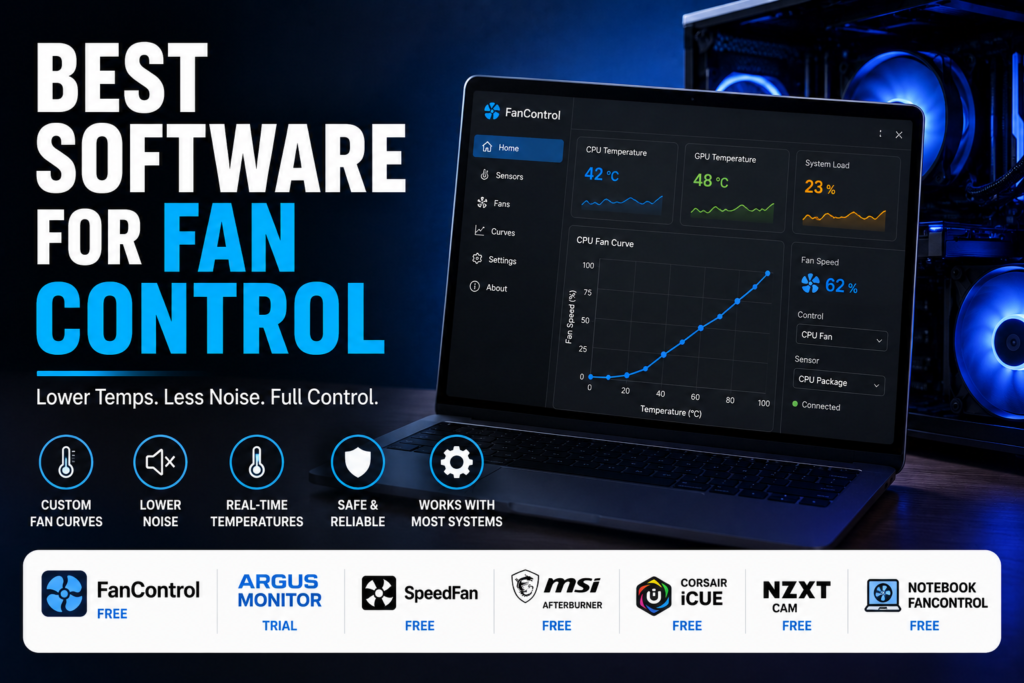
A computer that sounds like a hair dryer every time you open a browser tab usually is not a hardware problem, it is a fan curve problem. The default curves set by most motherboards are cautious and reactive, which means fans spin up fast and loud instead of ramping up smoothly as your CPU actually warms up. The best software for fan control fixes this by letting you build your own curve, tying fan speed directly to real temperature readings instead of a factory default. This guide covers which tools actually control your fans versus which ones only display numbers, how to tell universal software from tools locked to one brand of hardware, and how to build your first custom curve safely. Let us start with a distinction that trips up a lot of people searching for this.
Table of Contents
Monitoring Temperature Is Not the Same as Controlling Fans
A surprising number of tools that show up in fan control software searches do not actually control anything. HWMonitor, for example, is an excellent free CPU temperature monitor that reads sensor data accurately, but it has no ability to change your fan speed at all. If your goal is genuinely quieter or cooler running, you need software that both reads temperature and writes new fan behavior back to your hardware, not just one that reports numbers on a dashboard.
This distinction matters because a lot of best fan control software roundups mix pure monitoring tools in with actual control software without saying so clearly, which sends people downloading the wrong thing entirely.
Best Software for Fan Control, Compared
Here is how the most commonly recommended options actually compare once you separate real control from monitoring only tools.
| Software | Cost | Actually Controls Fans | Best For |
| FanControl | Free | Yes | Most desktop users wanting real custom curves |
| Argus Monitor | Paid, free trial | Yes | Lightweight monitoring plus control in one app |
| SpeedFan | Free | Yes, on older hardware | Older motherboards only, largely outdated now |
| MSI Afterburner | Free | GPU fans only | Overclockers who mainly care about GPU cooling |
| HWMonitor | Free | No, monitoring only | Checking temperatures without changing anything |
| Corsair iCUE | Free | Yes, Corsair hardware only | Full Corsair fan and cooler ecosystems |
| NZXT CAM | Free | Yes, NZXT hardware only | Full NZXT fan and cooler ecosystems |
| NoteBook FanControl | Free | Yes, laptops only | Laptops with a supported embedded controller |
FanControl, the Option Most People Should Start With
FanControl, built by a developer known as Rem0o, has become the default recommendation for a reason. It is built on LibreHardwareMonitor for its sensor data, so it reads CPU, GPU, motherboard, and storage temperatures accurately, and it lets you build fully custom curves tied to any of those sensors. Its standout feature is mix curves, which let you combine several temperature sources into one control logic, useful if you want your case fans responding to whichever component is hottest at any given moment rather than just your CPU.
It is completely free, with the developer accepting donations rather than charging. The main limitation is that it does not control RGB lighting, so if color sync matters to you as much as cooling, you will still need a separate tool for that part.
Argus Monitor, a Solid Paid Alternative
Argus Monitor bundles fan control with drive health monitoring and a lighter system footprint than some alternatives. It is not free, but its trial is generous enough to test whether its curve editor suits you better than FanControl’s before paying. It tends to appeal to people who want one lightweight app handling both cooling and drive health warnings in a single window.
Why SpeedFan Keeps Showing Up, and Why You Should Be Careful
SpeedFan is still recommended constantly in older articles because it was genuinely excellent for its time. The problem is that its hardware support has not kept pace with modern motherboards, and on newer systems it frequently fails to read sensors correctly or control fans at all. If you are running current generation hardware, treat SpeedFan as a piece of computing history rather than a real option, regardless of how often it still appears in best fan control software lists.
Universal Software Versus Tools Locked to One Brand
This is a real decision point that most comparisons skip. FanControl and Argus Monitor work across brands, reading whatever sensors your motherboard exposes regardless of who made your case fans. Corsair iCUE and NZXT CAM, on the other hand, are built specifically for their own hardware ecosystems. They work extremely well if every fan and cooler in your case is from that same brand, with deeper integration and often nicer visual dashboards, but they generally will not control a fan from a different manufacturer at all.
If your build mixes brands, which is common, a universal tool like FanControl is usually the more practical choice. If you deliberately built an all Corsair or all NZXT system, the vendor software is worth using specifically for the tighter integration.
Laptops Need a Different Approach Entirely
Almost every tool discussed so far assumes a desktop motherboard with exposed fan headers. Laptops are a different problem, since fan control usually runs through an embedded controller that most third party software cannot access safely. NoteBook FanControl is one of the few tools built specifically for this, though it only supports a limited list of laptop models with a known, compatible embedded controller. If your laptop is not on that supported list, manufacturer software, or in some cases a BIOS or firmware level setting, is a safer route than forcing a generic desktop tool onto laptop hardware.
Setting Up Your First Fan Curve Safely
- Close any manufacturer fan software first, running two control programs at once can cause conflicting commands to your fans
- Install your chosen tool and let it run for a few minutes with default settings so you can see your baseline idle and load temperatures
- Start with a gentle curve, low fan speed until around 50 degrees Celsius, then a steady ramp up to full speed by 80 degrees Celsius
- Stress test briefly with a demanding game or benchmark and watch whether temperatures stay within a safe range for your CPU
- Adjust the curve gradually rather than making large jumps, since small changes are easier to evaluate one at a time
Common Problems and How to Fix Them
Fans stuck at full speed. Usually caused by two control programs fighting over the same fan header. Close any manufacturer software completely, including background services, before running your chosen tool.
Software cannot detect a fan at all. This is often a motherboard sensor labeling issue rather than a real fault. Try a different tool’s detection routine, since FanControl and Argus Monitor sometimes read headers differently depending on your motherboard’s chip.
Curve feels laggy or slow to respond. Most tools include a response time or hysteresis setting specifically to prevent fans hunting up and down repeatedly. Increasing this slightly usually smooths out an overly twitchy curve.
Temperatures still feel too high after a curve change. Before assuming the software is at fault, check whether your case airflow, thermal paste age, or dust buildup is the actual bottleneck, since no fan curve fixes a physical airflow problem.
Is It Safe to Let Software Control Your Fans
Yes, for the tools covered here. Reputable fan control software reads temperature sensors and adjusts fan speed within the safe operating range your hardware already supports, it does not push components beyond their rated limits. The real risk is running two conflicting programs at once, or setting a curve that keeps fans too slow at high temperatures, so the safety questions to actually watch are about your configuration, not the software itself. Checking your CPU’s rated maximum temperature on the manufacturer’s specification page is a reasonable step before finalizing any custom curve.
The best software for fan control for most desktop users is FanControl, thanks to its combination of universal hardware support, genuinely custom curves, and zero cost. Argus Monitor is worth considering if you want drive health monitoring bundled in and do not mind paying for it. Vendor tools like Corsair iCUE or NZXT CAM make sense only if your whole system matches that one brand, and laptops need their own dedicated approach entirely. Pick based on what you are actually running, build a gentle curve first, and adjust from there once you have real temperature data in front of you.